Steps to Import Bulk Contacts into CRM Using Lists Feature
1. Prepare Your Contacts File
Create an Excel file with contact details like Name, Email, Phone Number, Company, Tags, etc., in separate columns.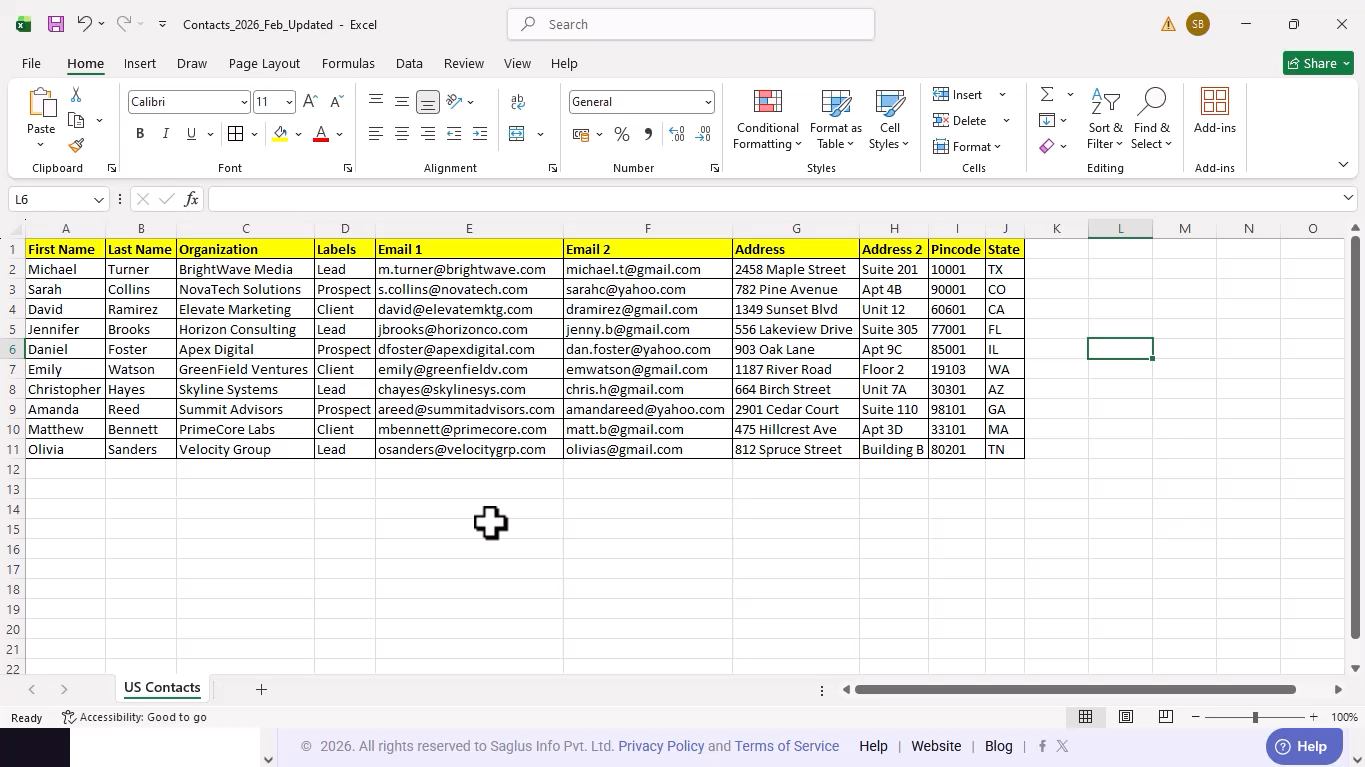
2. Login to DotcomPal Dashboard
Go to the CRM section from your dashboard.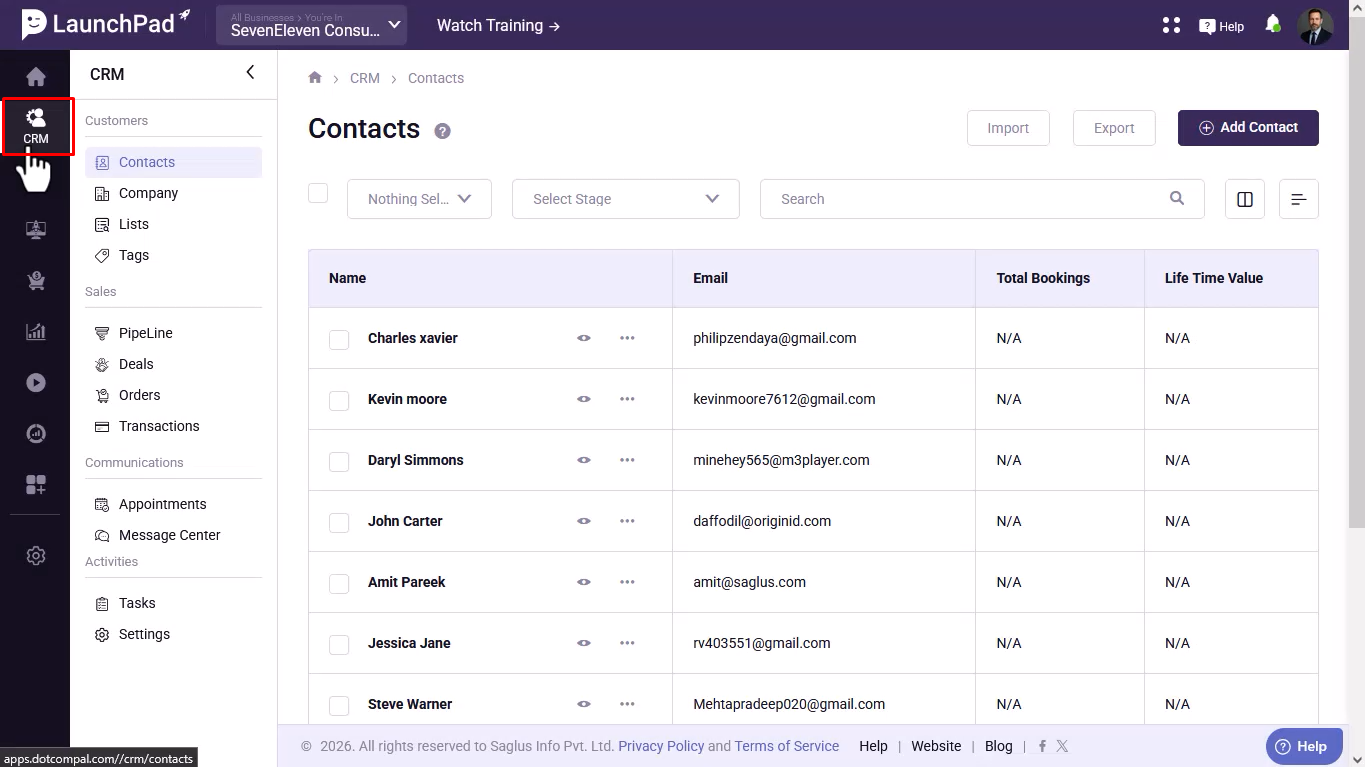
3. Open Import Option
Inside CRM, click on the Import option.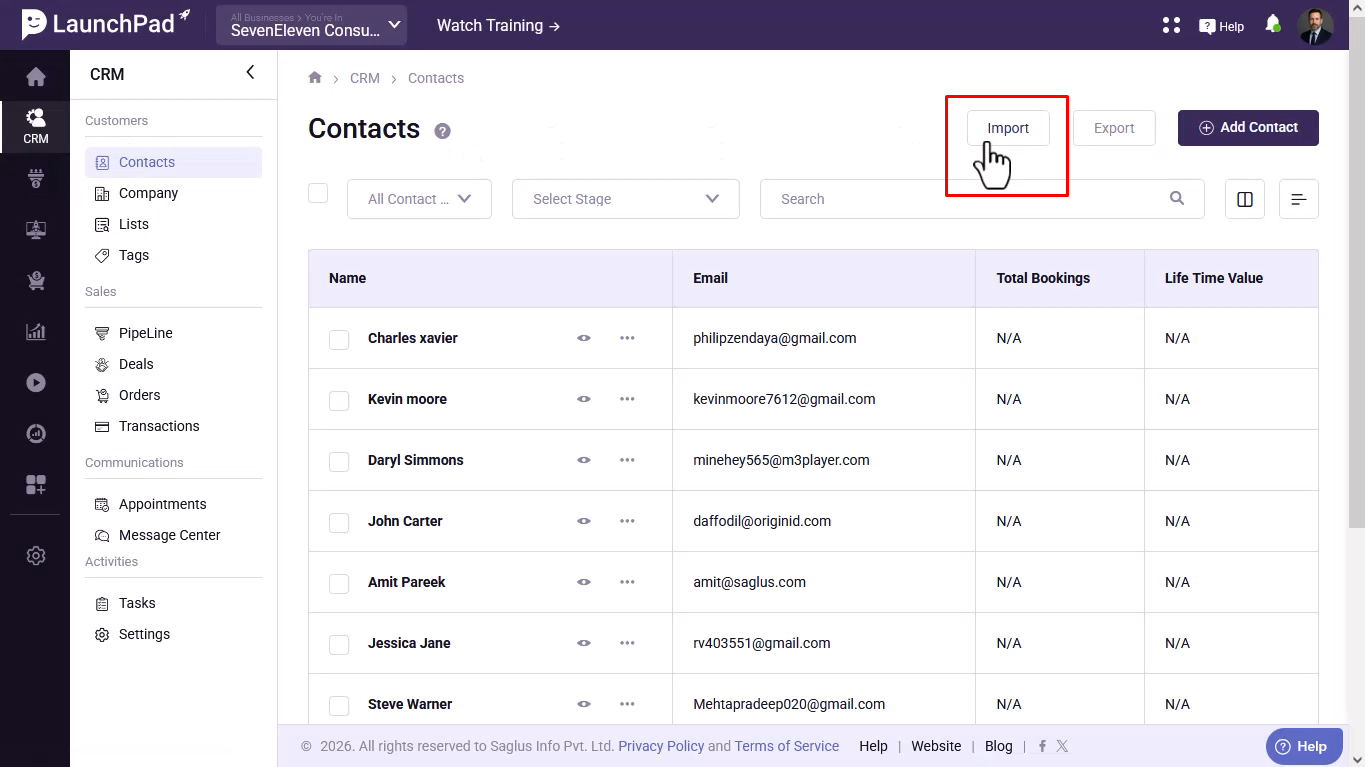
4. Upload the Excel File
Click on Choose File and upload your prepared Excel file.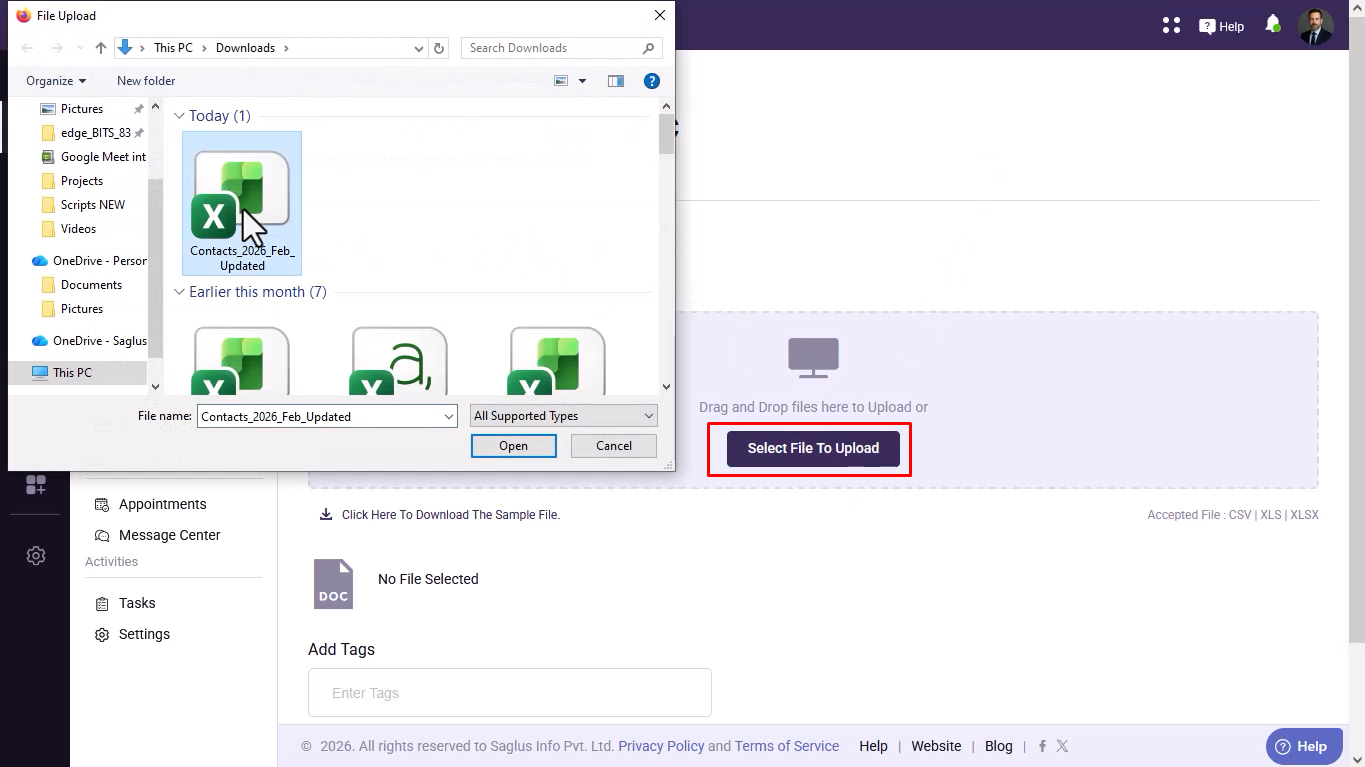
5. Add Tags (Optional)
You can assign tags to organize contacts easily.
- Tags added here will apply to all imported contacts.
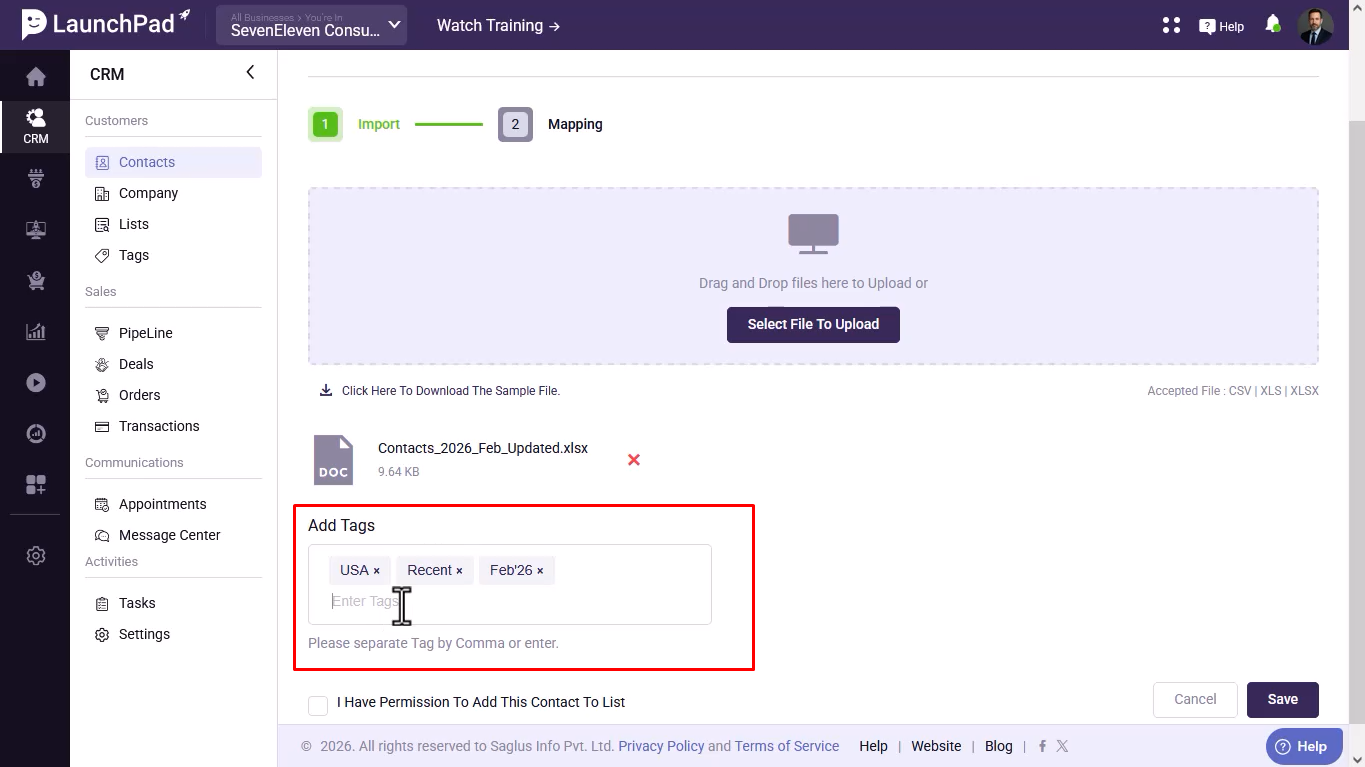
6. Confirm Permission Checkbox
Tick the consent/permission checkbox before importing contacts.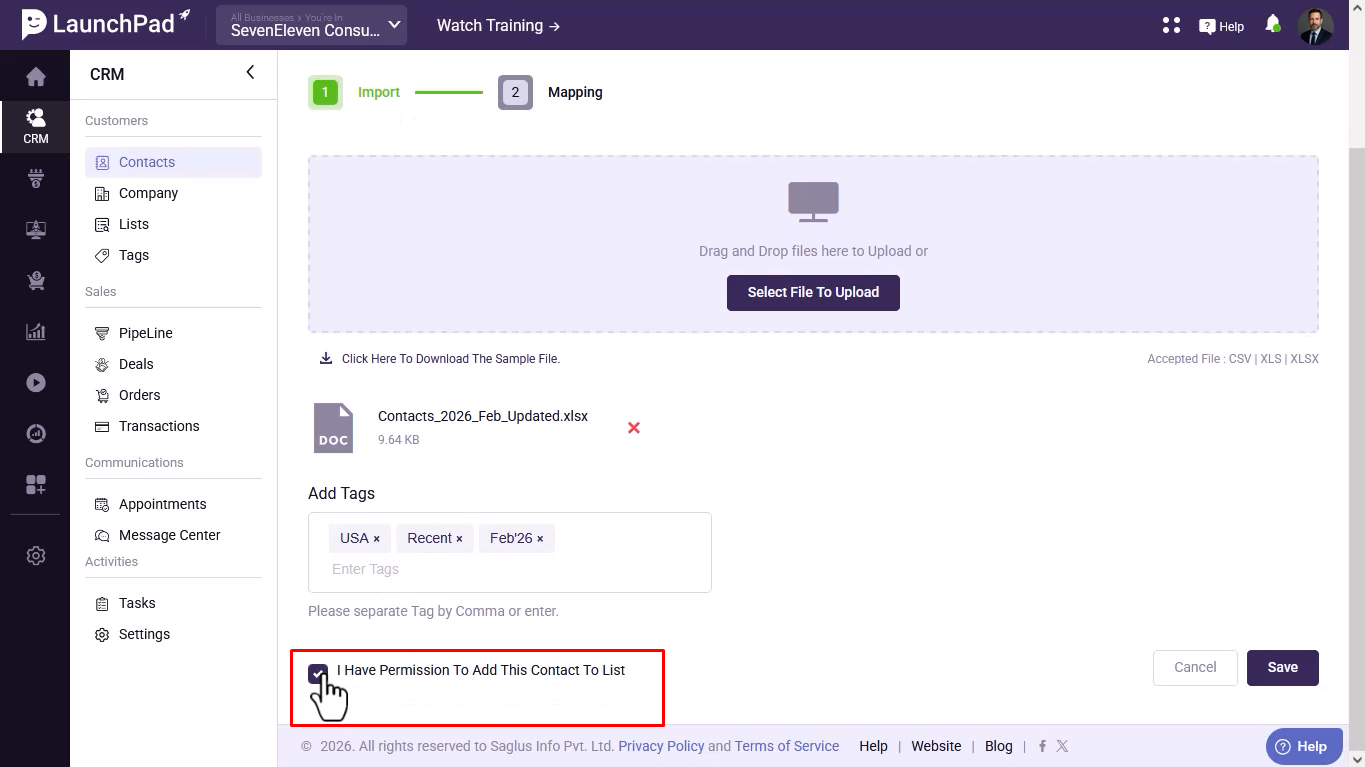
7. Save and Continue
Click on Save to proceed.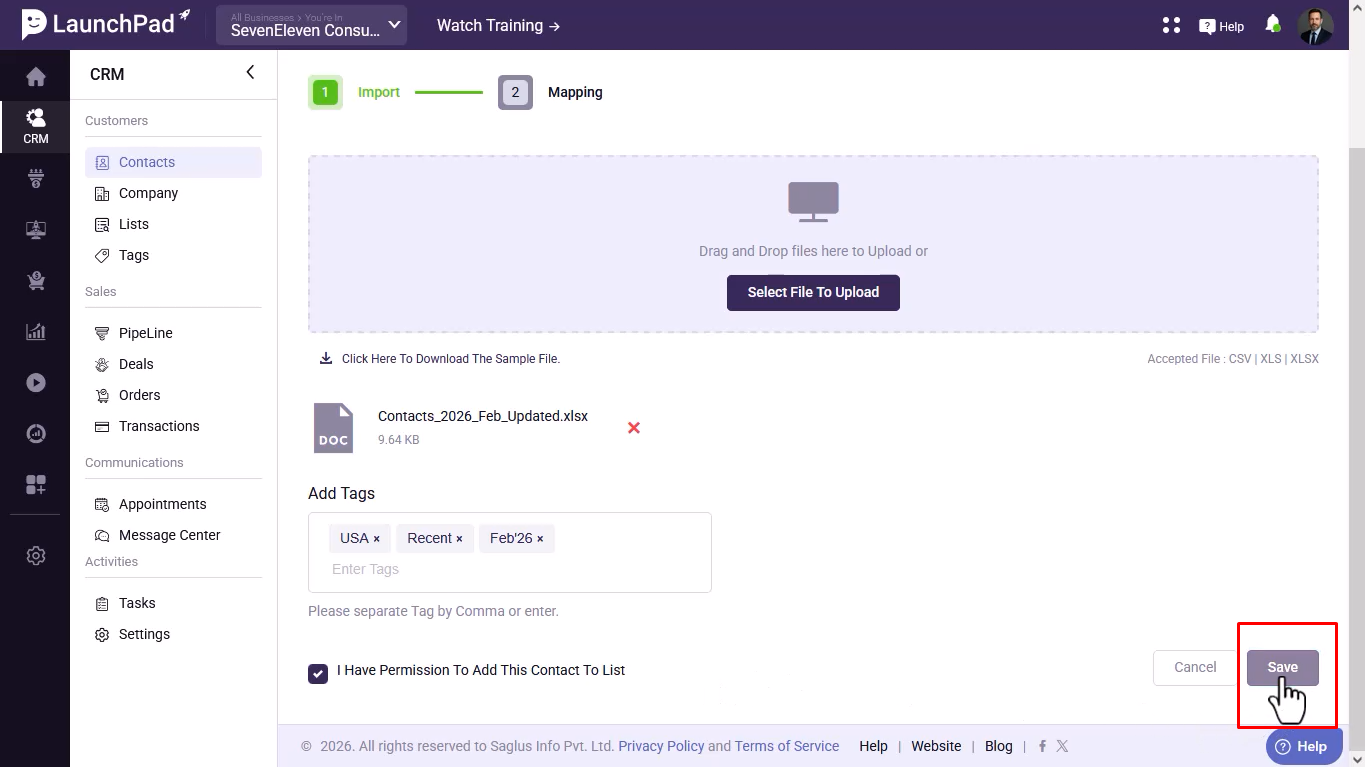
8. Map CRM Fields
Match Excel columns with CRM fields correctly.
- Email → Email field
- First Name → First Name field
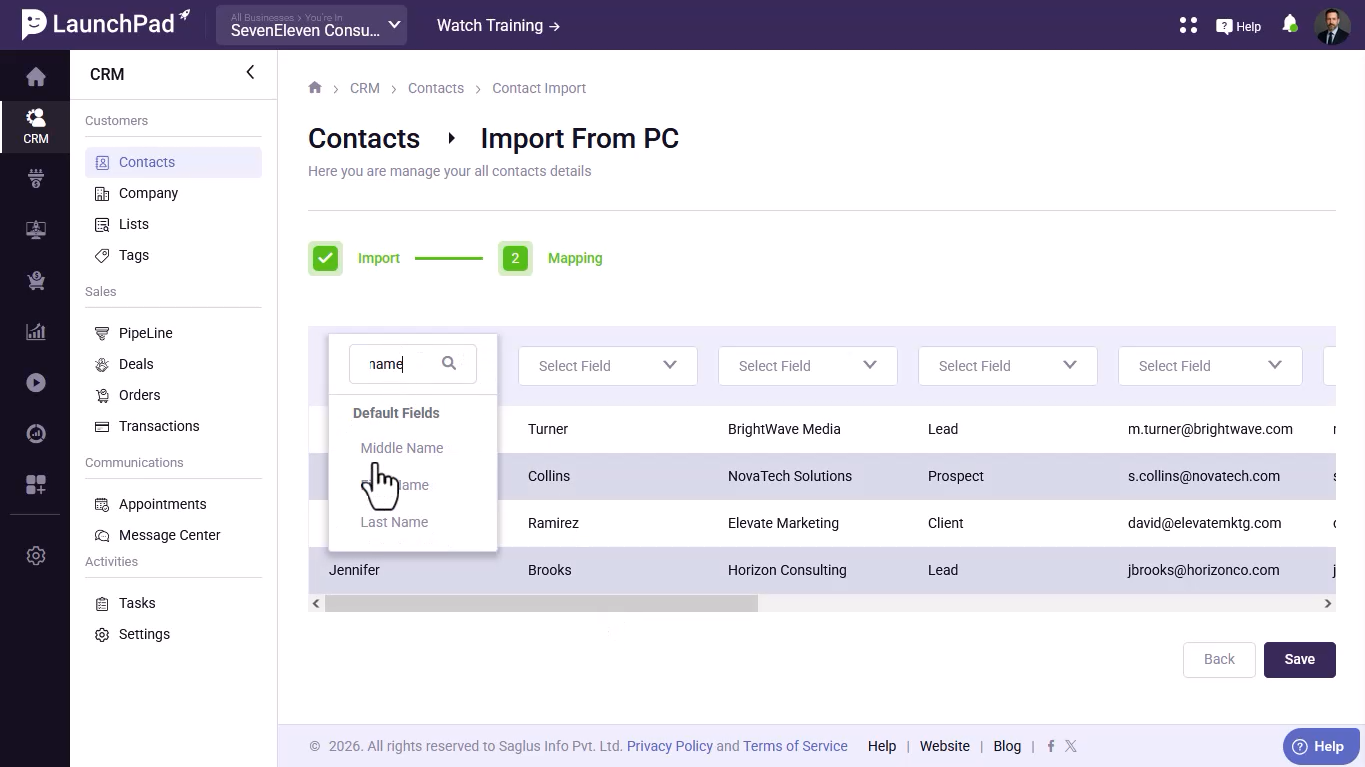
9. Complete the Import
Click on Save again to finish the import process.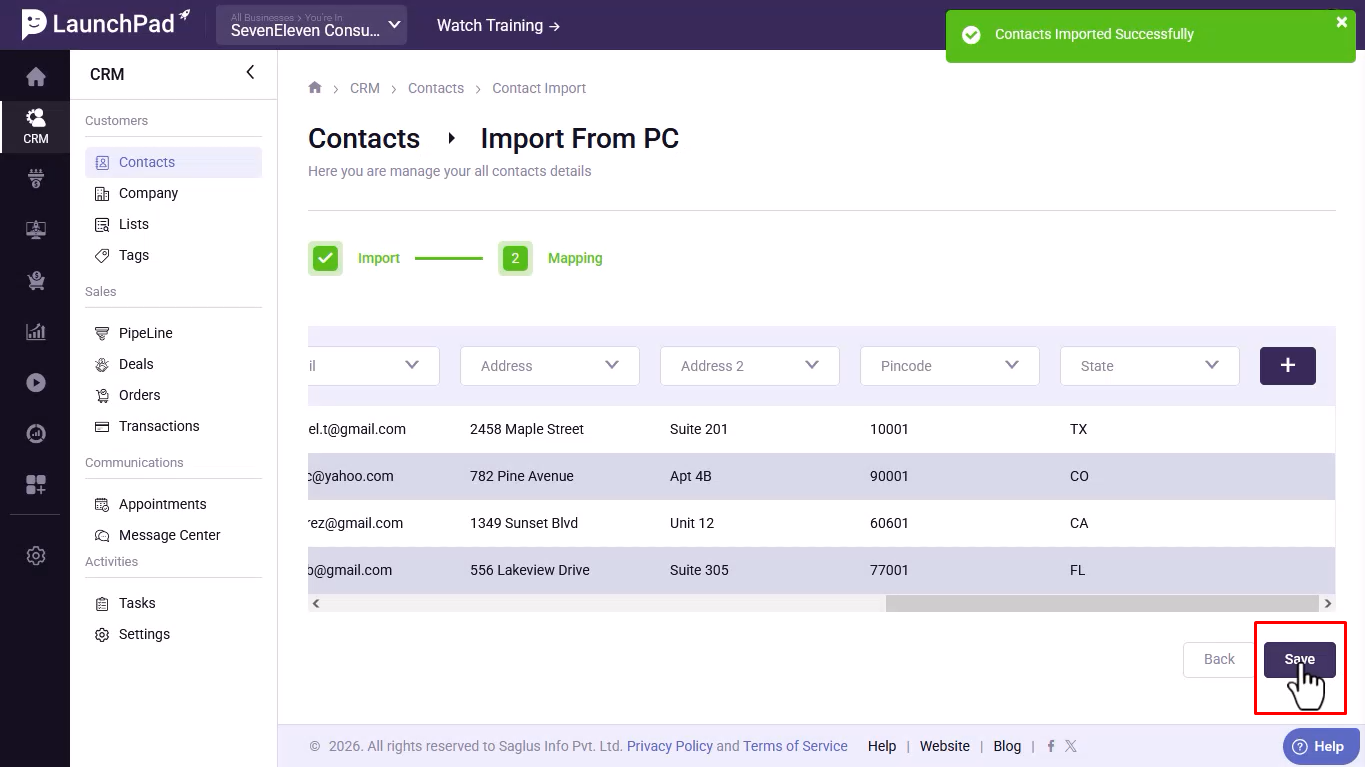
11. View Imported Contacts
Your contacts will now appear inside the CRM Contacts Dashboard.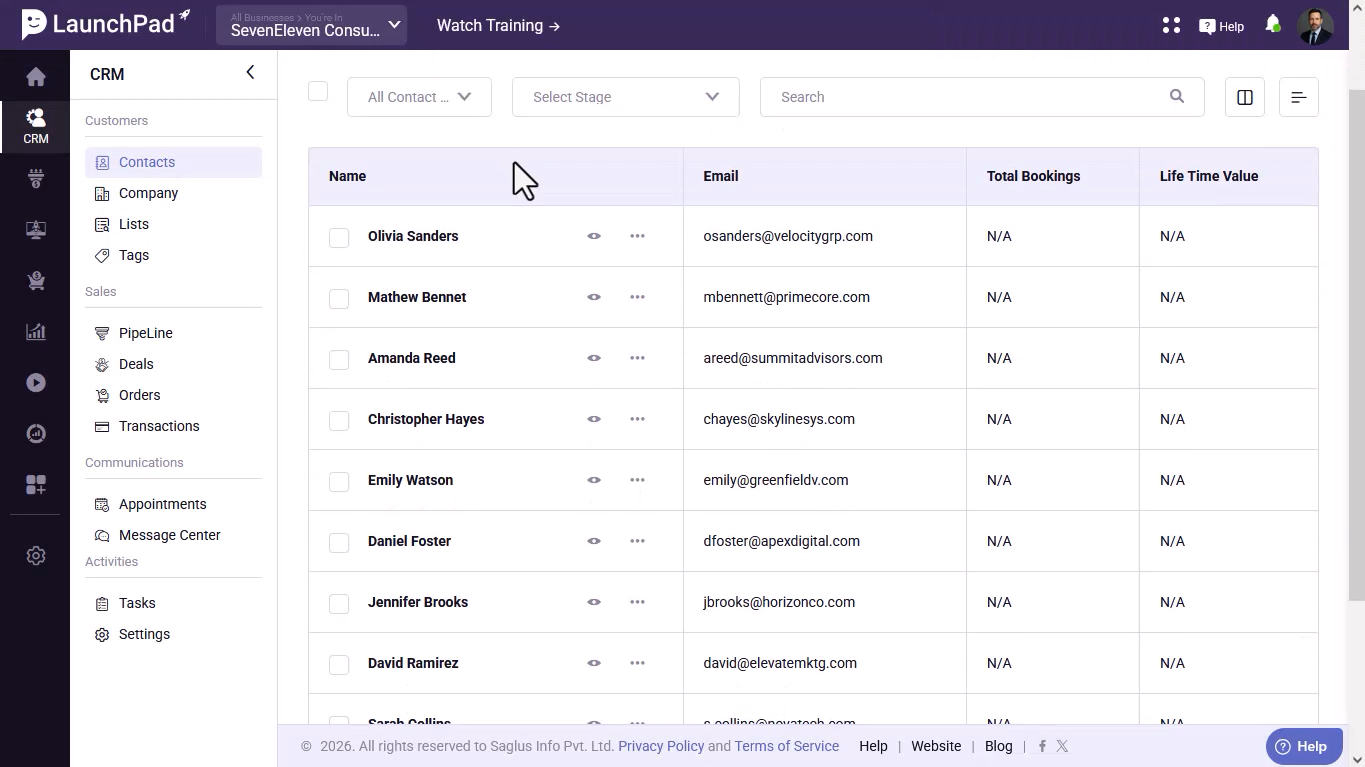
Was this article helpful?
That’s Great!
Thank you for your feedback
Sorry! We couldn't be helpful
Thank you for your feedback
Feedback sent
We appreciate your effort and will try to fix the article