Connect DotcomPal with Zoom to automatically add video conference links to your Appointments booking pages. Once integrated, every appointment your contacts schedule will include a Zoom meeting link — no manual setup required. You can also use this integration to sync Zoom meeting and webinar data directly into DotcomPal for a complete view of your contact activity.
It is not recommended to connect the same Zoom account to multiple DotcomPal business accounts if the account contains sensitive or private information that should not be accessible across accounts.
Before You Begin
Make sure the following requirements are met before starting the integration.
You must be an Admin or Owner of your DotcomPal account to manage integrations under Settings.
You must have an active Zoom account with login credentials (email and password, or SSO via Google, Apple, Facebook, or Microsoft).
You must have Admin permissions on the Zoom account you intend to connect. If you are not an admin of the Zoom account, request access from your Zoom account administrator before proceeding.
The Appointments module must be set up in your DotcomPal account if you intend to use Zoom links in appointment bookings.
Connect Zoom to DotcomPal
Follow these steps to install and authorize the Zoom integration from your DotcomPal dashboard.
In your DotcomPal dashboard, click the More icon in the left-hand sidebar. A pop-out menu will appear showing additional navigation options including MyDrive, Integration, and API.
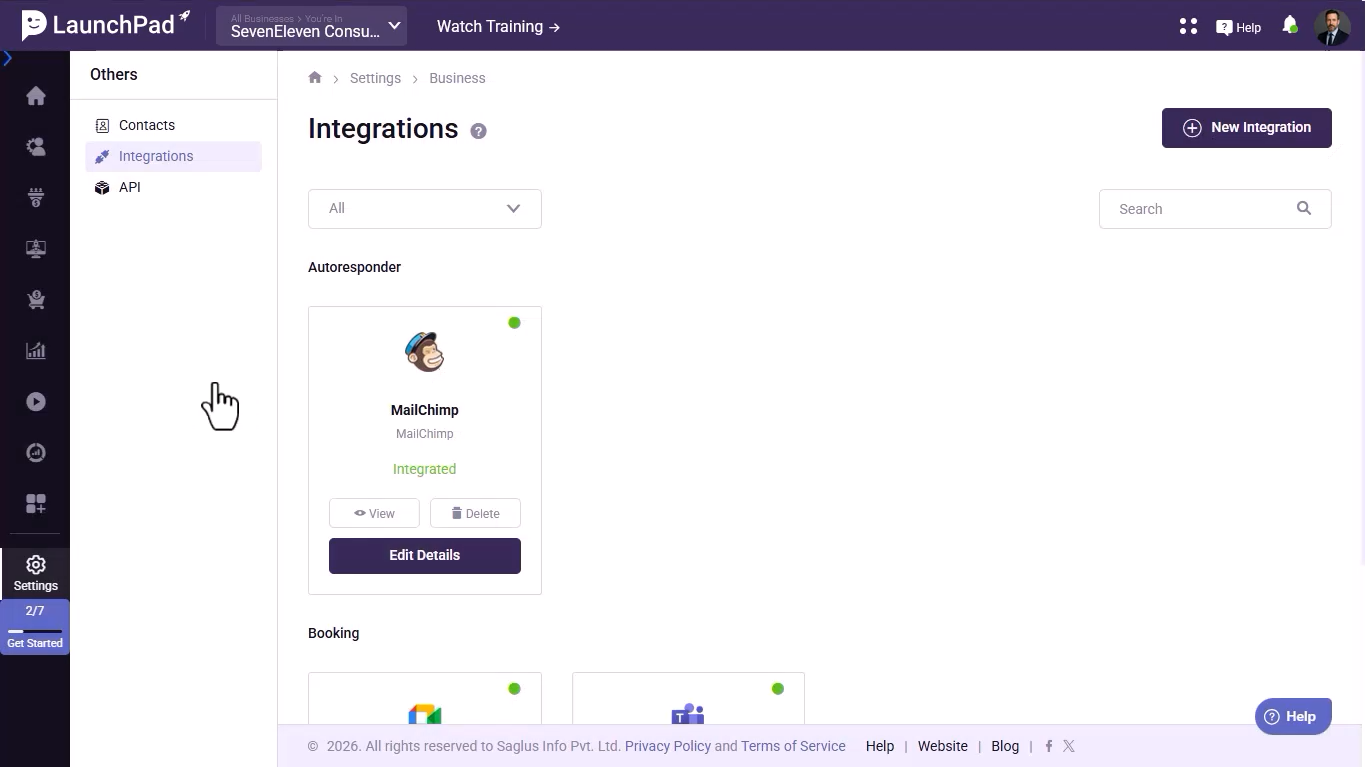
Click Integration. You will be taken to:
This page lists all your currently connected and available integrations. Existing integrations (like MailChimp, Google Meet, or Microsoft Teams) will appear here with a green status dot if already active.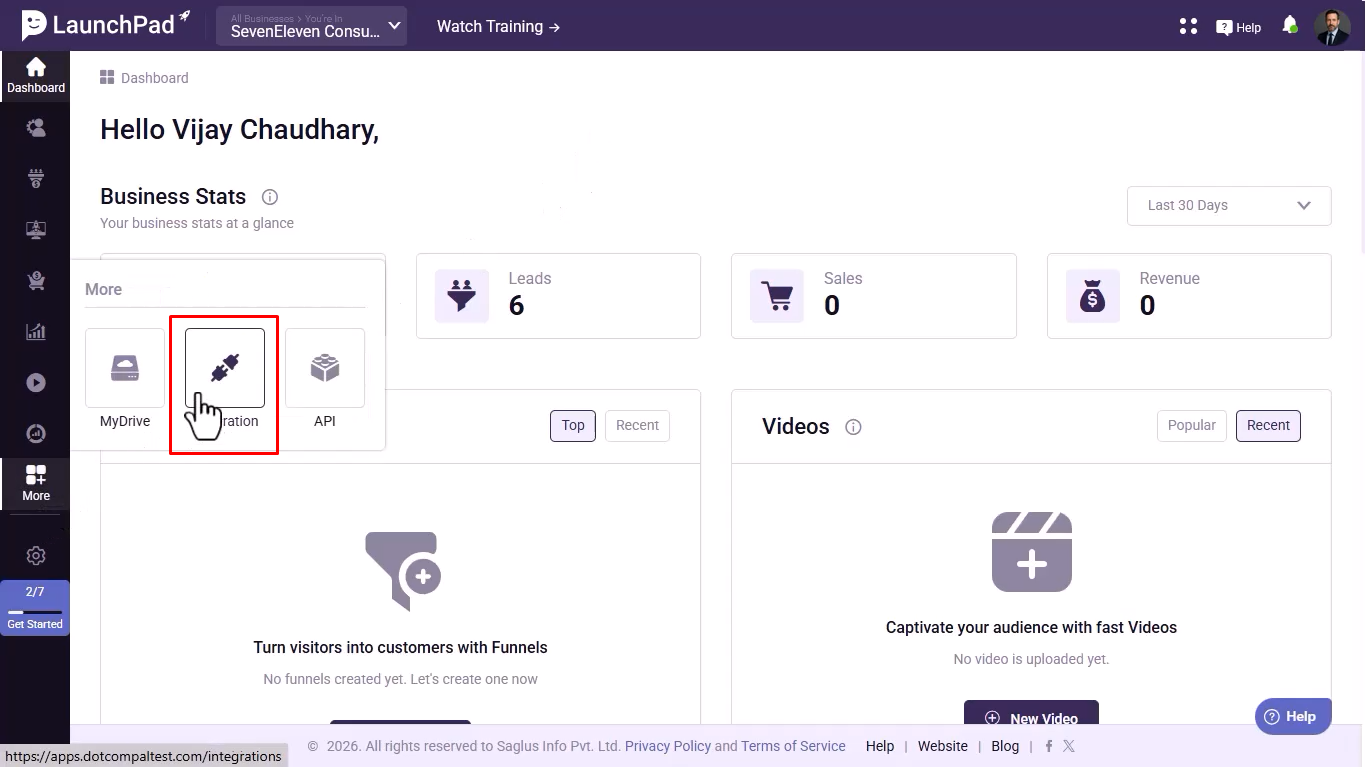
In the top-right corner of the Integrations page, click the + New Integration button. This opens the Add New Integrations page where all available third-party integrations are listed.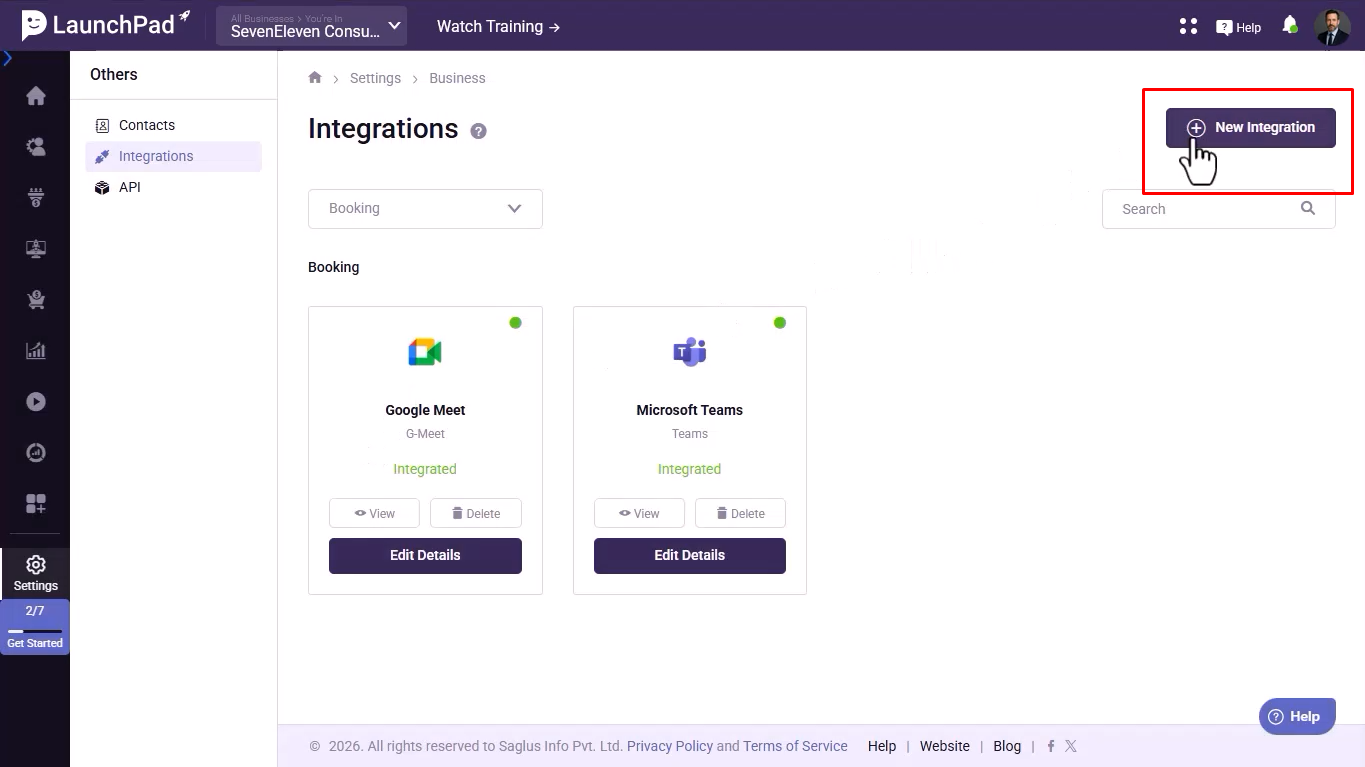
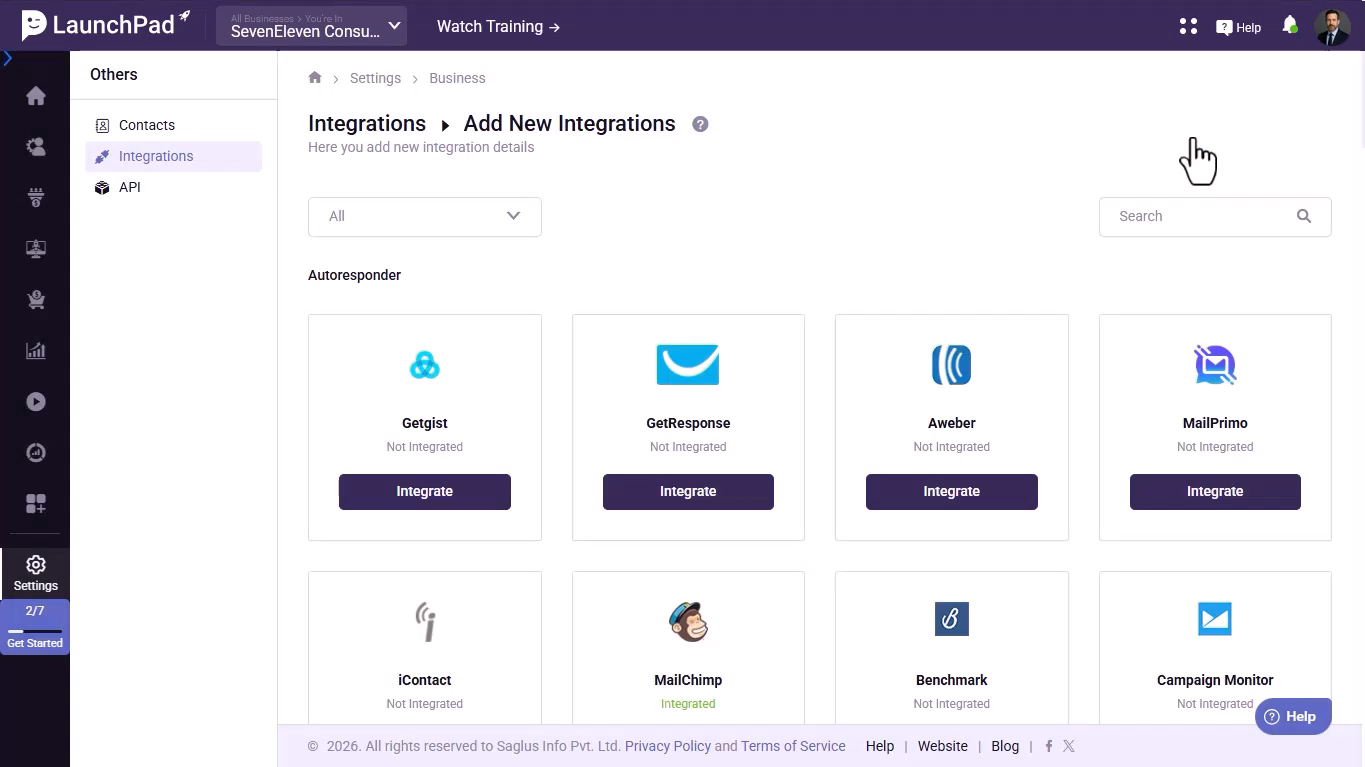
On the Add New Integrations page, use the category dropdown (showing "All" by default) to filter integrations. Click it and select Booking from the dropdown. The list will update to show only booking-related integrations: Zoom, Google Meet, and Microsoft Teams.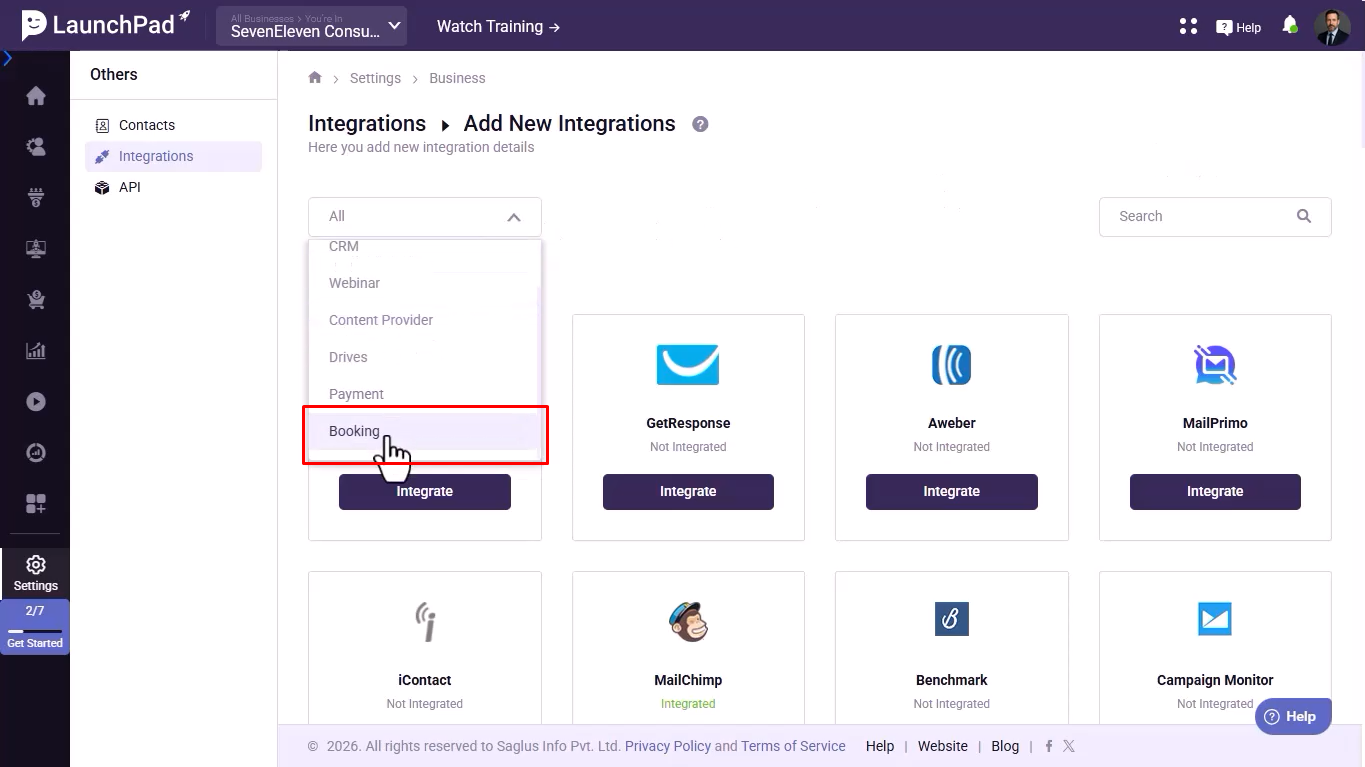
Locate the Zoom card (showing "Not Integrated") and click the Integrate button beneath it.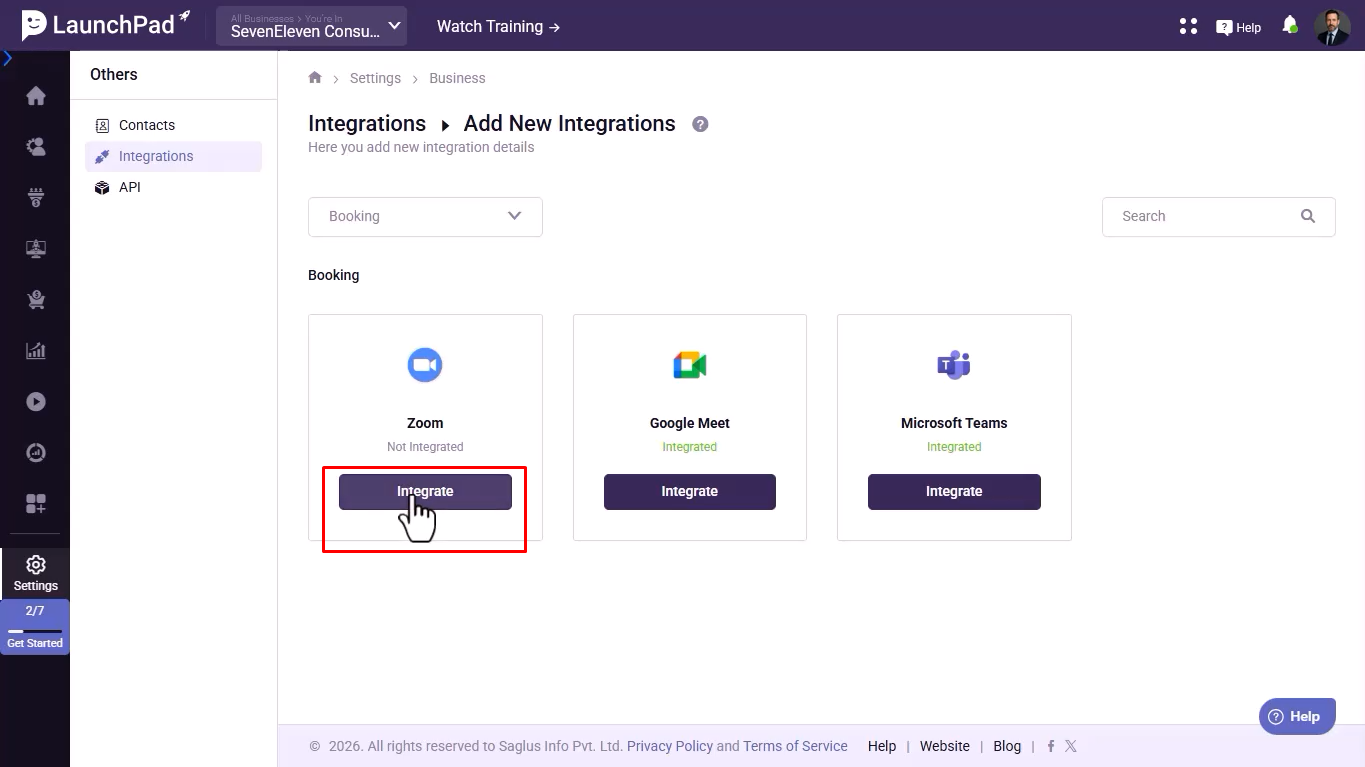
A credentials form will slide into view below the integration cards. Fill in the following:
- Title — Enter a name to identify this connection (e.g.,
Zoom Integration). This label will appear in your integrations list. - Redirect URL — This field is pre-filled automatically by DotcomPal (
https://apps.dotcompal.com/zoom/callback). Do not modify this value.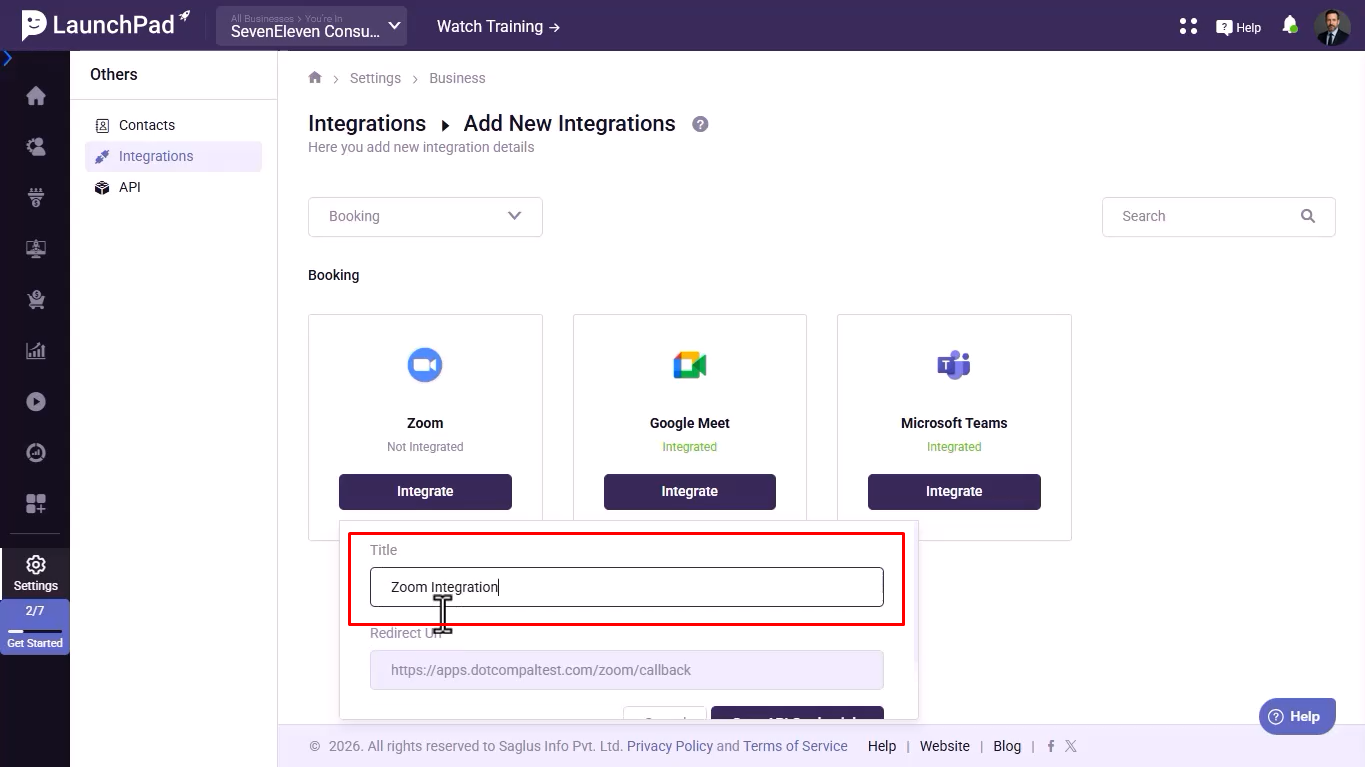
After entering a title, click the Save API Credentials button. DotcomPal will begin the authorization process and redirect you to the Zoom sign-in page.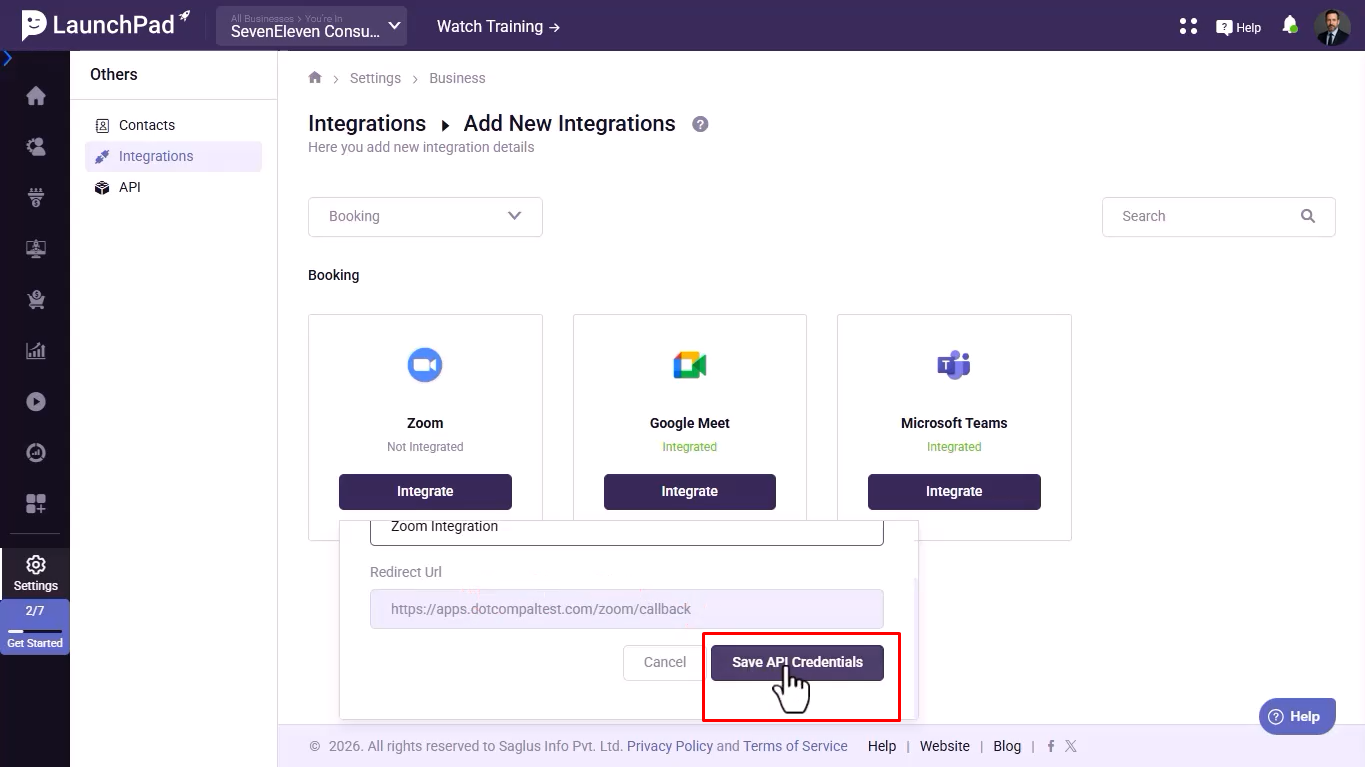
On the Zoom sign-in page, enter your Zoom account email address and password, then click Sign In. Alternatively, you may sign in using SSO, Apple, Google, Facebook, or Microsoft.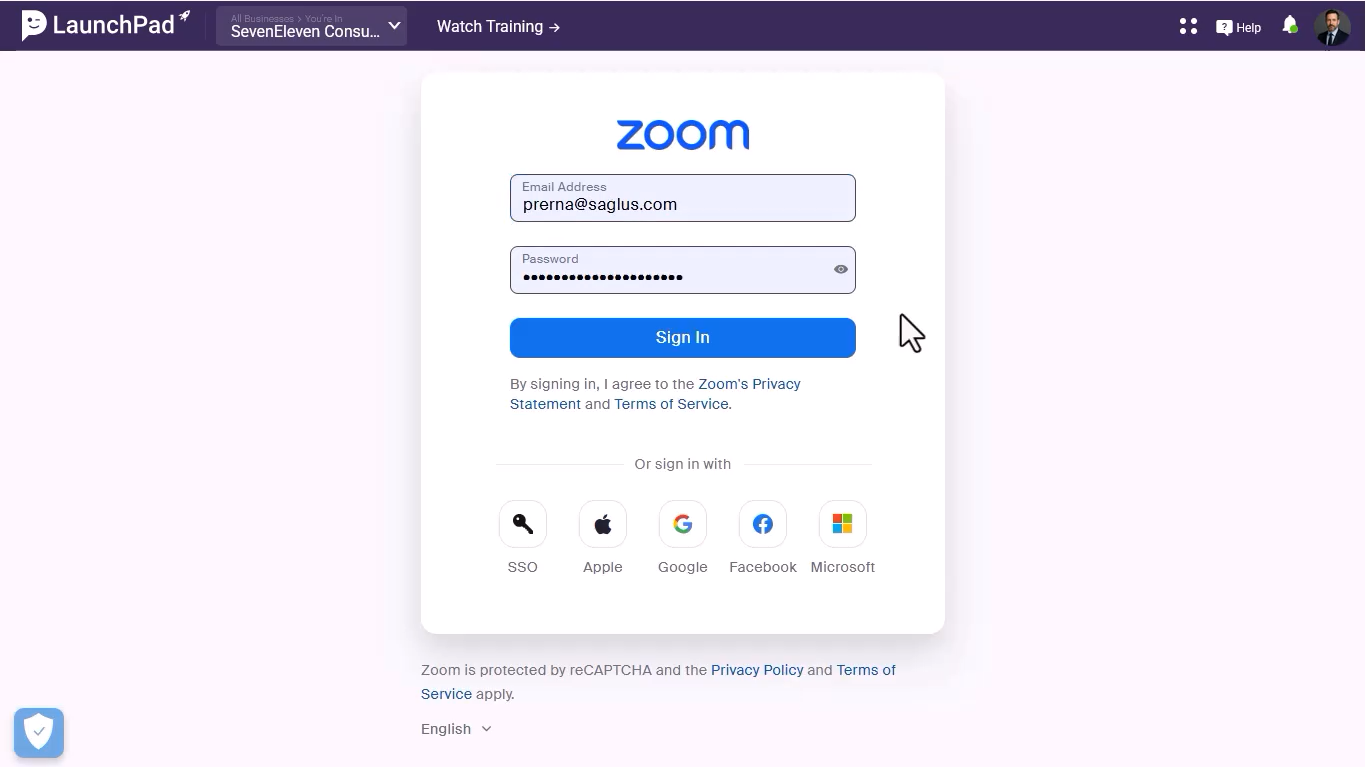
Use the credentials for the Zoom account you want to link to DotcomPal. Make sure this account has admin permissions in Zoom before proceeding.
After signing in, Zoom will display a permissions authorization page listing all the actions DotcomPal will be allowed to perform on your behalf. This includes access to:
Scroll down to review the Optional Permissions and the section labeled "Types of data Zoom Webinars, Events and Meetings For DotcomPal will access."
To allow DotcomPal to act on behalf of other users in your Zoom account (account-wide access), check the box:
☑ Allow this app to use my shared access permissions.
Checking "Allow shared access permissions" means DotcomPal can take actions on behalf of all users in the connected Zoom account based on your permission level. Only check this if you intend to manage Zoom across your whole team.
Click the Allow button to grant DotcomPal access to your Zoom account. You will be automatically redirected back to DotcomPal.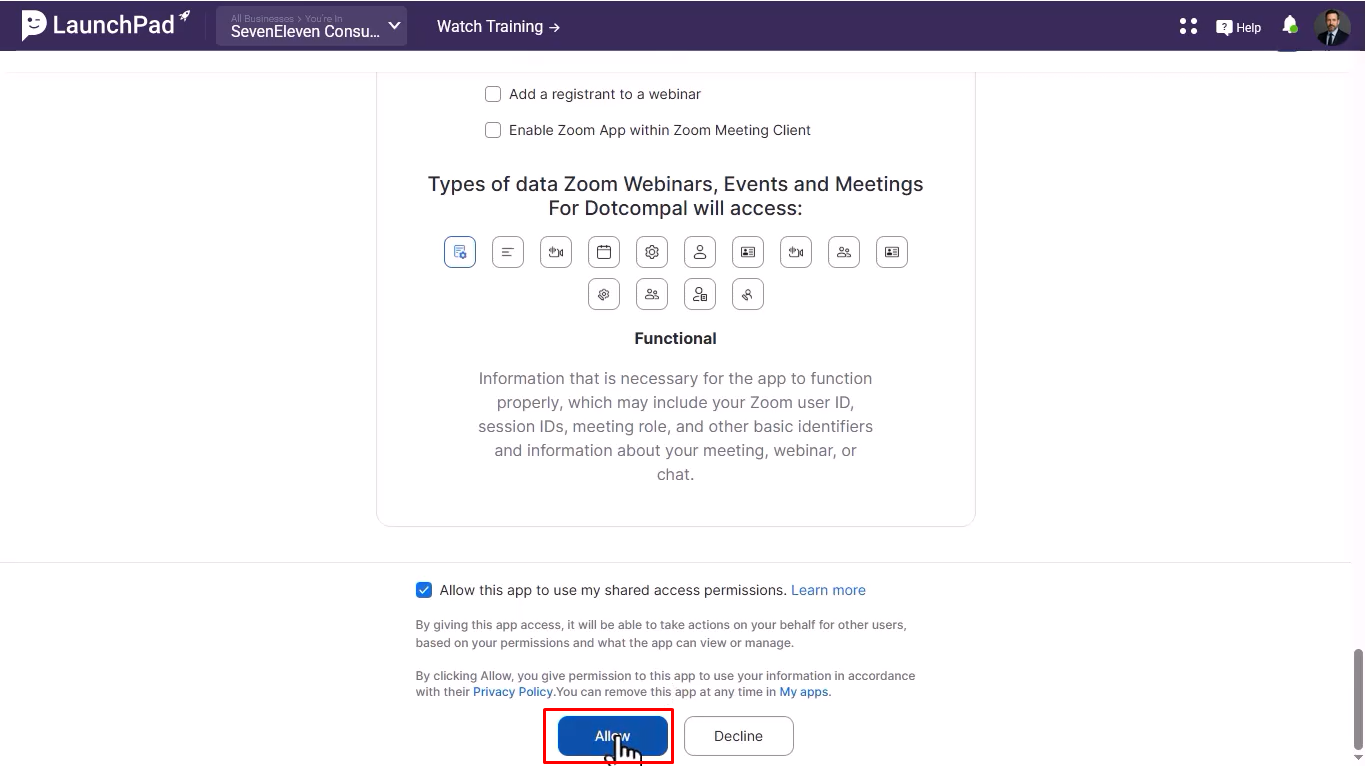
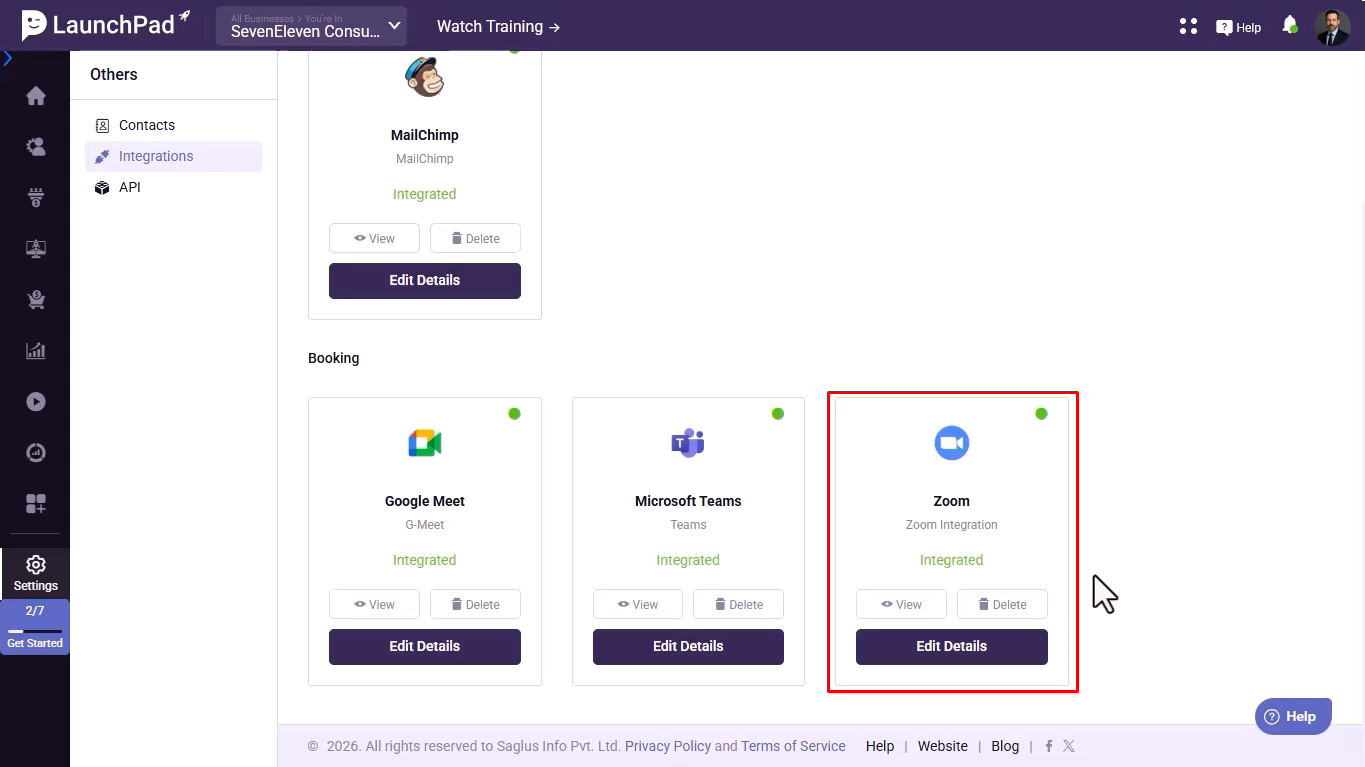
You will be returned to the Integrations page in DotcomPal. Scroll to the Booking section — your Zoom integration will now appear with a green active status dot, confirming the connection was successful.
Manage Your Zoom Integration
After connecting, you can view, update, or remove the integration at any time.
Navigate to
On the Zoom integration card, you have three options:
- View — Opens a read-only summary of the integration credentials and status.
- Edit Details — Allows you to update the integration title or re-authorize the connection.
- Delete — Removes the Zoom integration from DotcomPal. This does not affect your Zoom account itself
What You Can Do After Connecting Zoom
Once Zoom is connected to DotcomPal, the following features become available across your account.
Auto-Add Zoom Links to Bookings
Every appointment created via Appointments will automatically include a unique Zoom meeting link in the confirmation sent to your contact.
Webinar Data Sync
Sync your Zoom webinar registrant and attendance data directly into DotcomPal contacts, enabling targeted follow-up campaigns.
Meeting Registrant Management
View and manage who has registered for your Zoom meetings from within DotcomPal without switching platforms.
Unified Contact Activity
Zoom meeting participation activity is linked to contact records, giving you a complete picture of every engagement in one place.
Troubleshooting
Common issues and how to resolve them.
!Zoom shows "Not Integrated" after completing the steps
Refresh the Integrations page. If the status still shows as not integrated, try the process again and make sure you click Allow (not Decline) on the Zoom permissions page.!I don't see Zoom under Booking integrations
Make sure you have selected Booking from the category dropdown filter on the Add New Integrations page. Alternatively, use the Search bar and type "Zoom" to locate it directly.!The Zoom login page is not loading
Check your browser's pop-up blocker settings. DotcomPal opens the Zoom authorization page as a redirect. Ensure pop-ups or redirects fromapps.dotcompal.comare allowed in your browser.!I get a permissions error on the Zoom side
Confirm that the Zoom account you are signing into has admin-level access. Non-admin Zoom accounts may not be able to grant the full set of permissions DotcomPal requires.? Still need help?Reach out to the DotcomPal support team via the Help button in the bottom-right corner of your dashboard, or visit support.dotcompal.com.
- .
Was this article helpful?
That’s Great!
Thank you for your feedback
Sorry! We couldn't be helpful
Thank you for your feedback
Feedback sent
We appreciate your effort and will try to fix the article