How to Integrate Zoom with DotcomPal Appointments
- Log in to DotcomPal and open the left vertical menu.
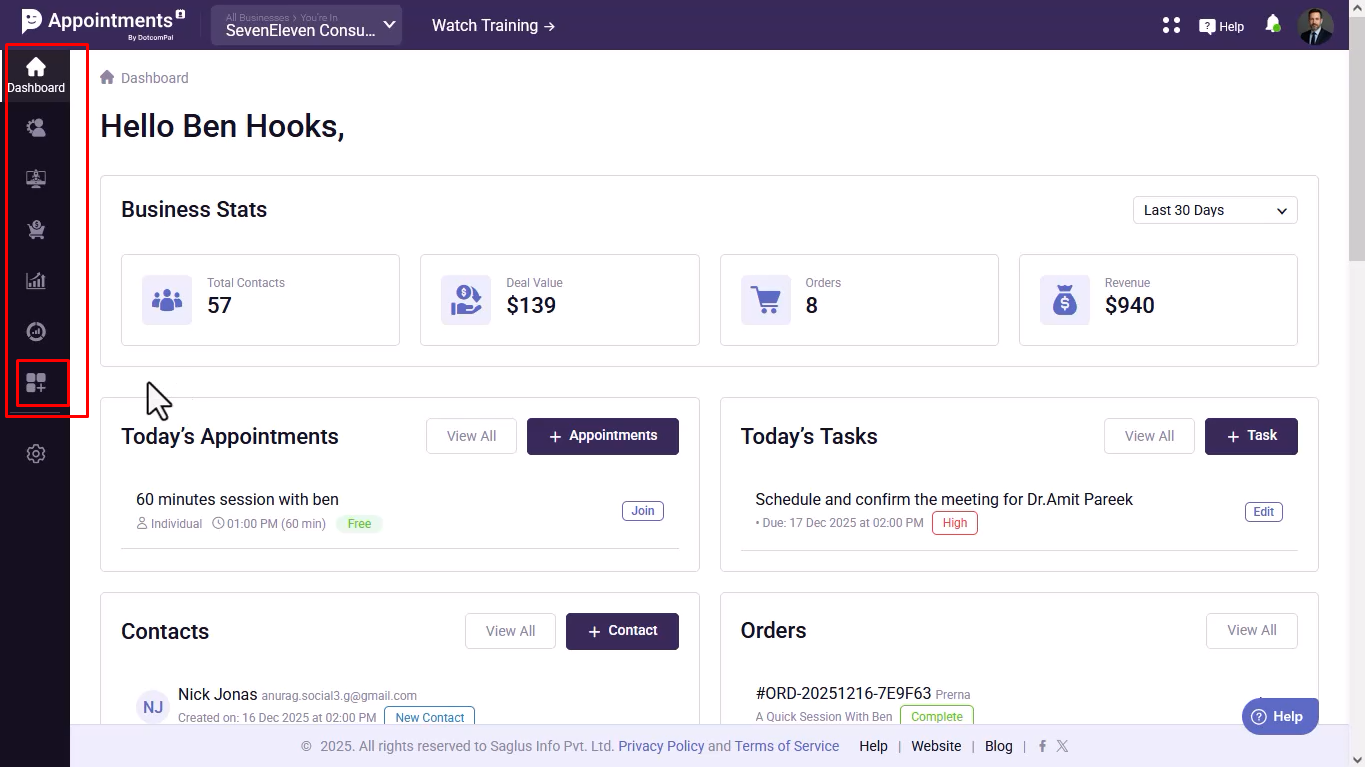
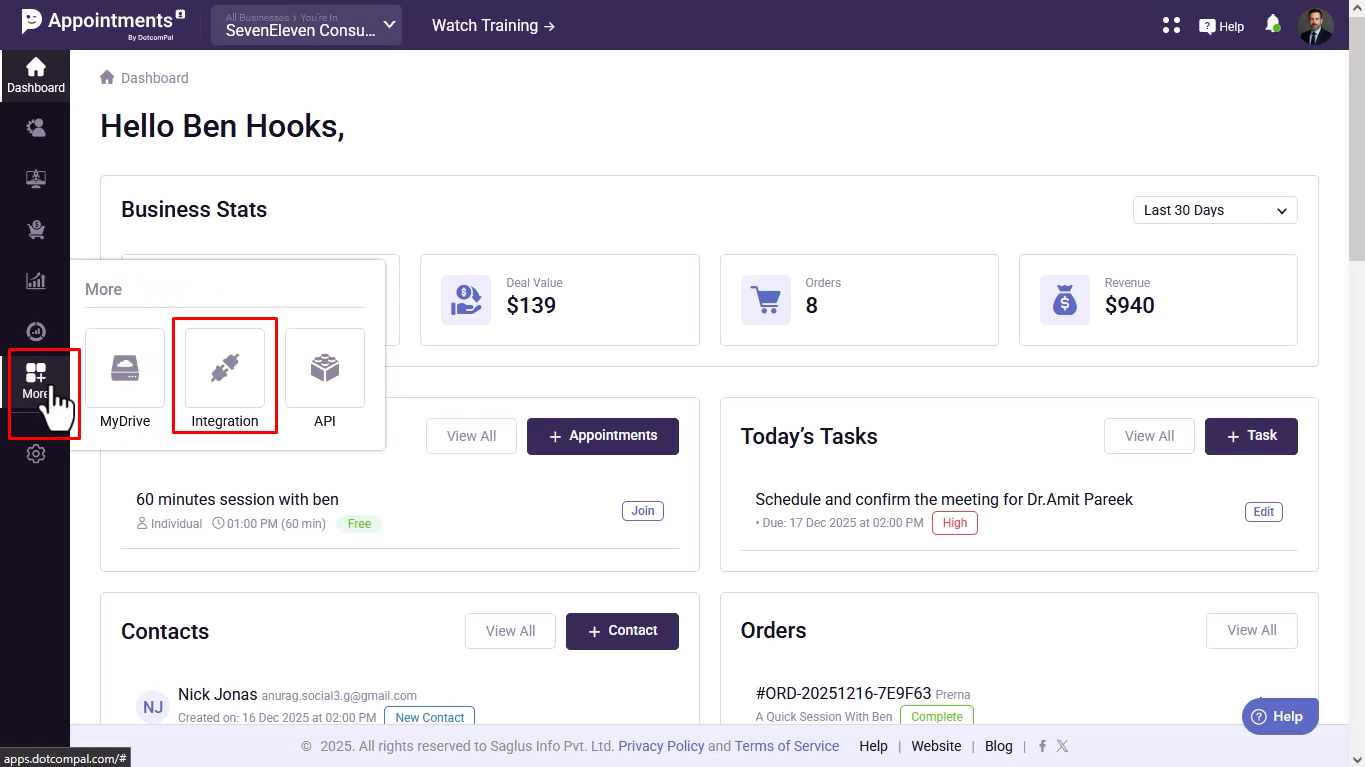
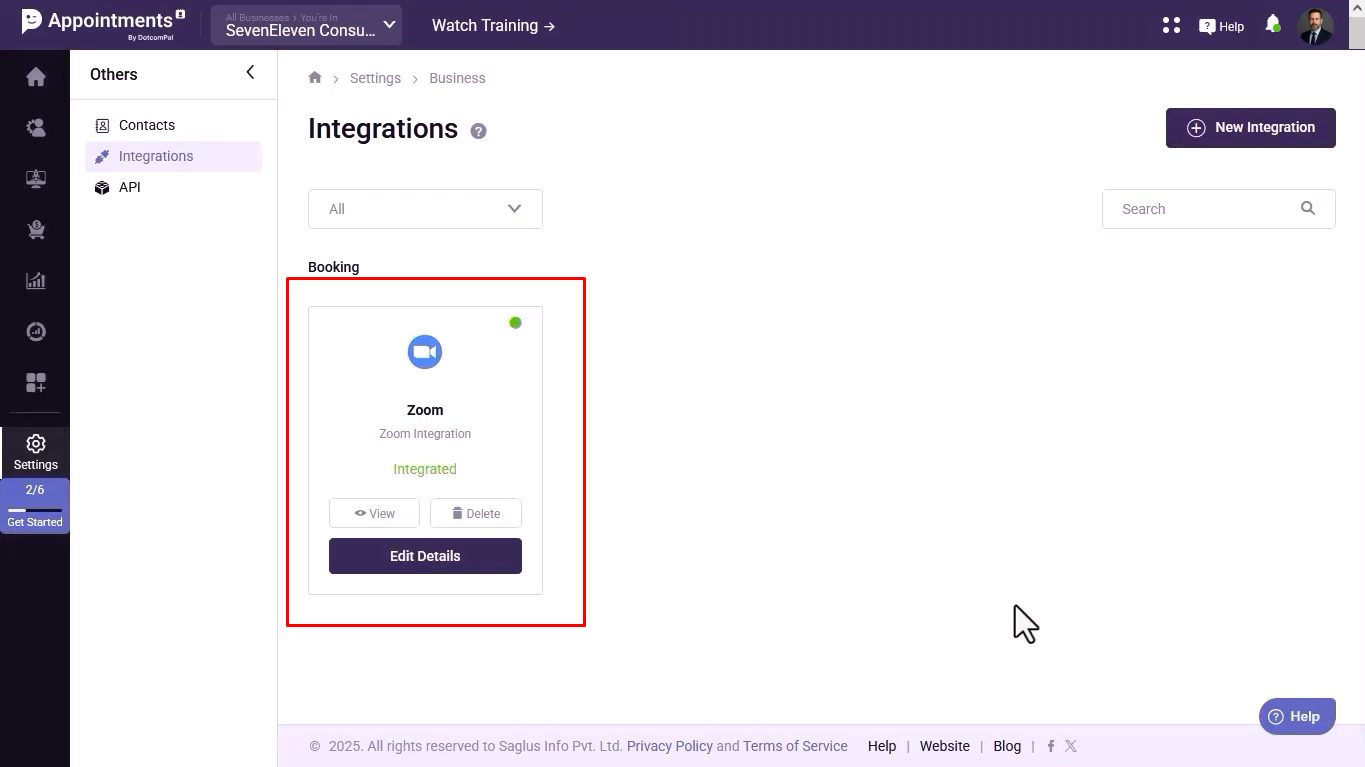
- Click the More icon and go to Integrations.
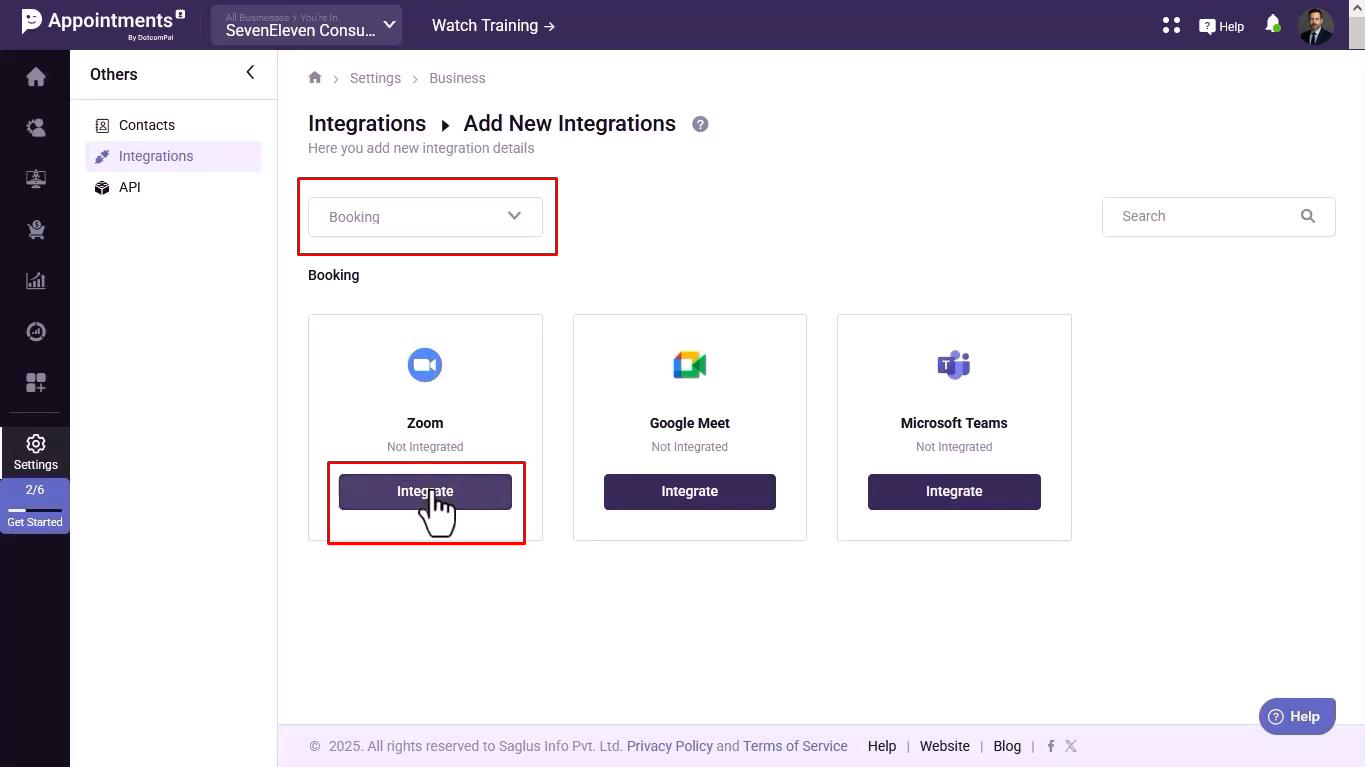
- From the Integrations dashboard, select Bookings and click Integrate under Zoom.
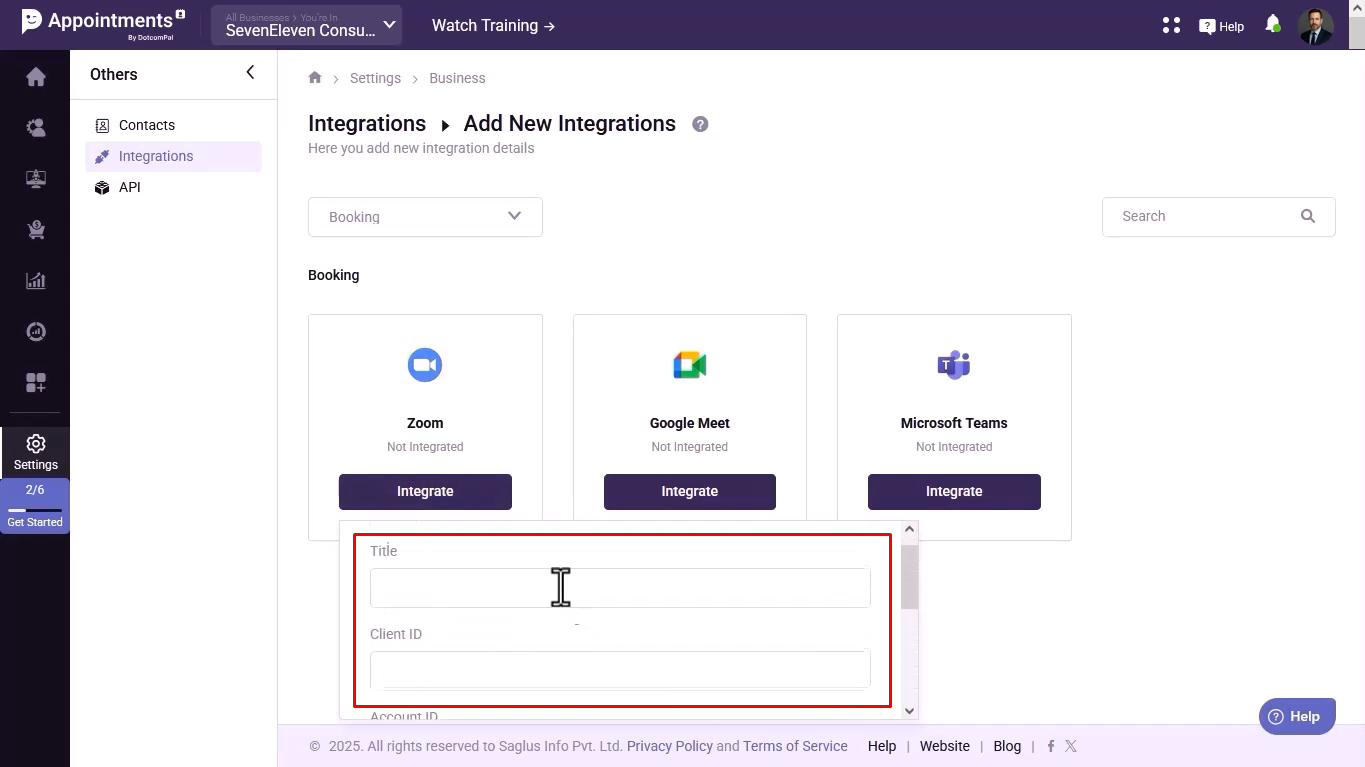
- DotcomPal will ask for Client ID, Account ID, and Client Secret.
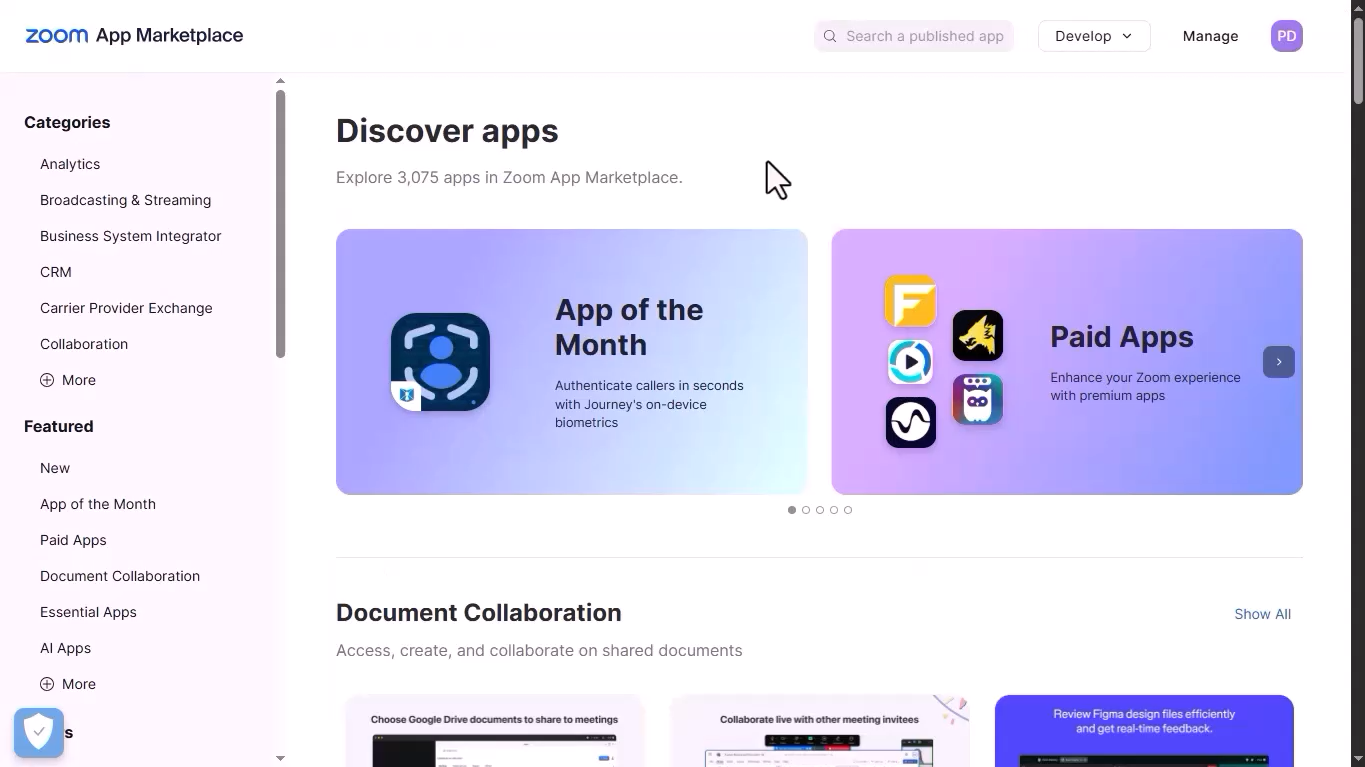
- Log in to the Zoom App Marketplace.
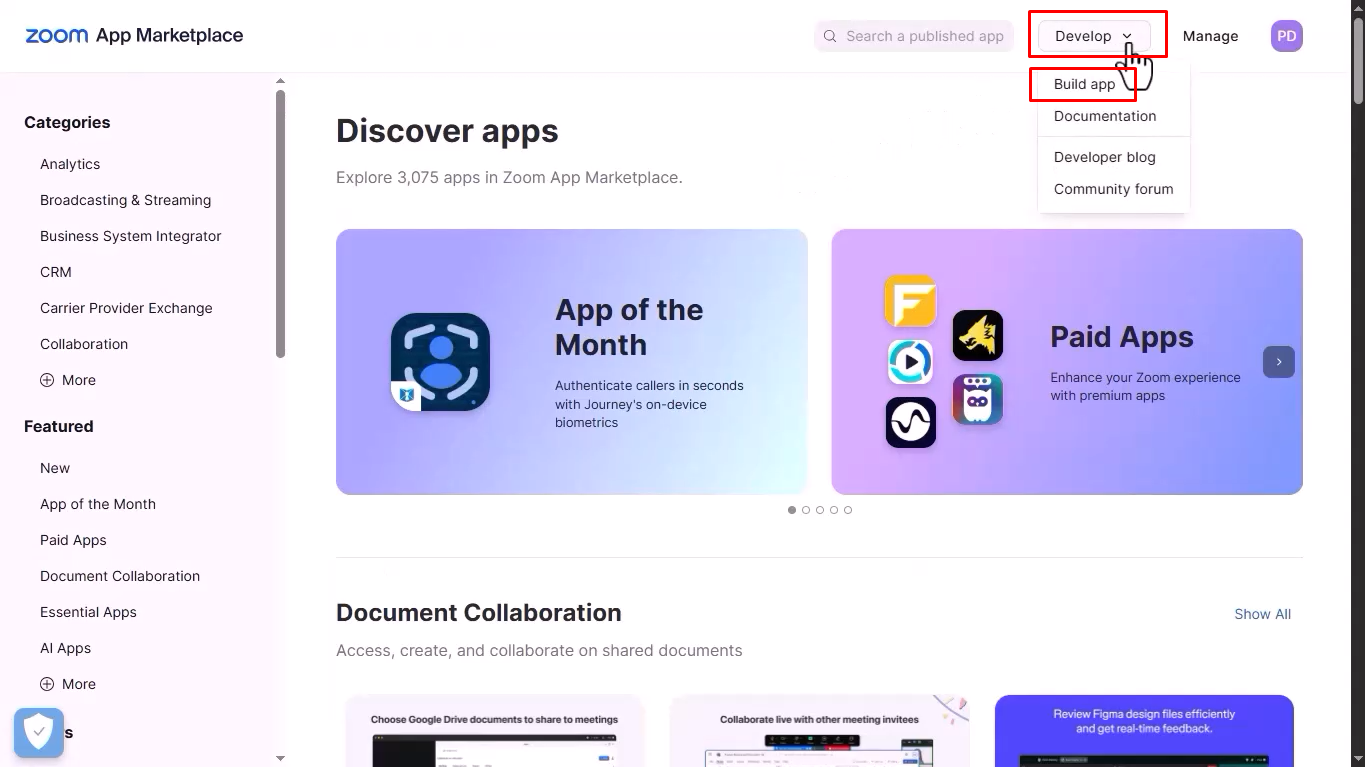
- Click Develop from the top menu and select Build App.
- Choose Server-to-Server OAuth and give your app a suitable name.

- Complete the required details, add the necessary Meetings and Users scopes, and activate the app.
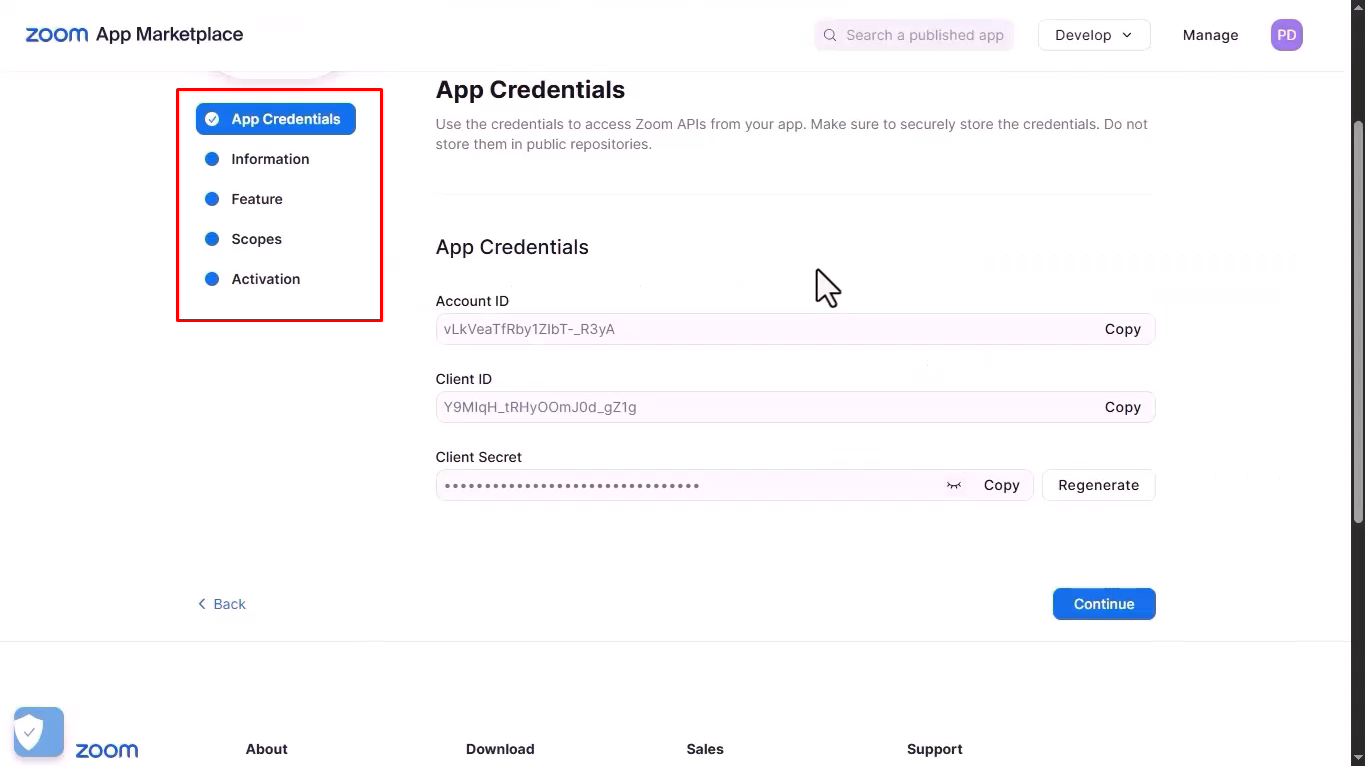
- Copy the Client ID, Account ID, and Client Secret from Zoom and paste them into respective fields.
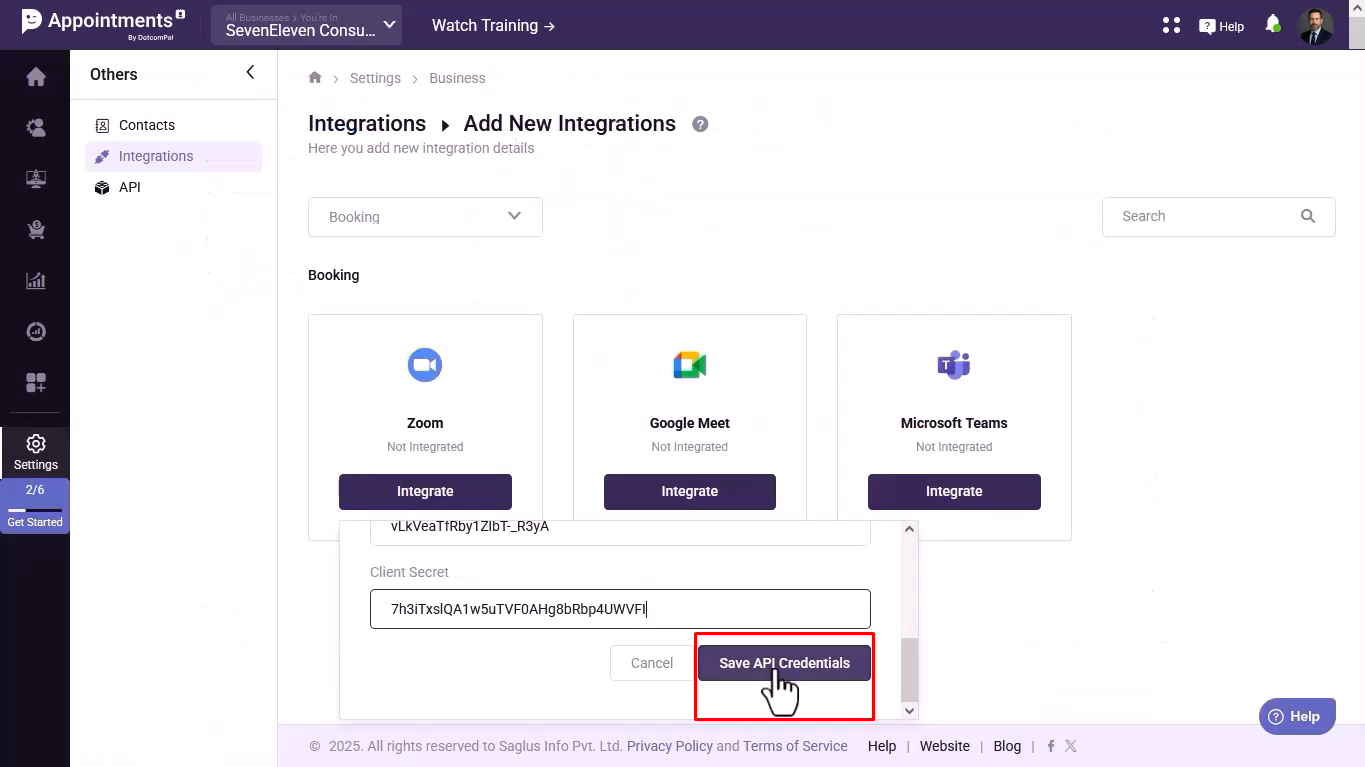
- Click Save API Credentials to finish the integration.
Was this article helpful?
That’s Great!
Thank you for your feedback
Sorry! We couldn't be helpful
Thank you for your feedback
Feedback sent
We appreciate your effort and will try to fix the article