How to Create and Manage Tasks in DotcomPal CRM
Step 1: Access the CRM Module
Click on CRM from the left-side navigation menu.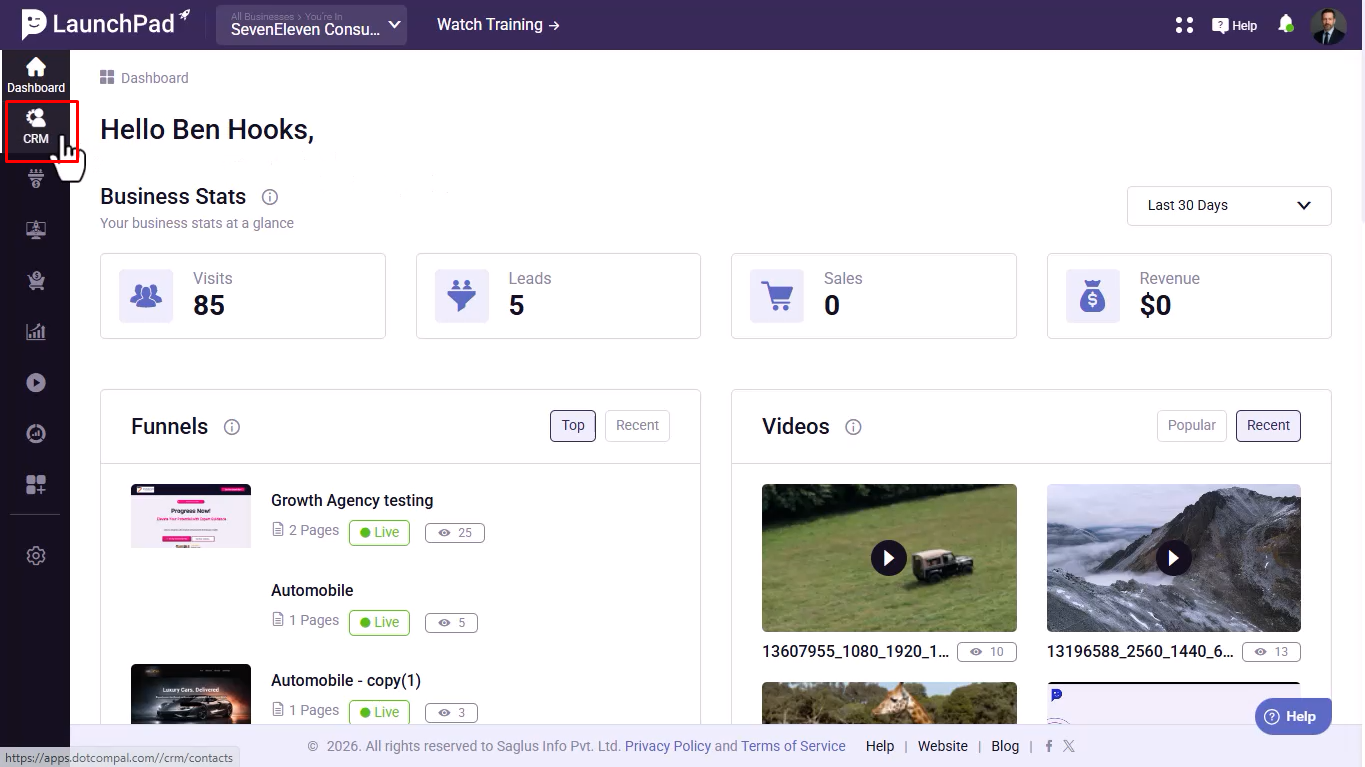
Step 2: Open the Tasks Section
Scroll down and click on Tasks.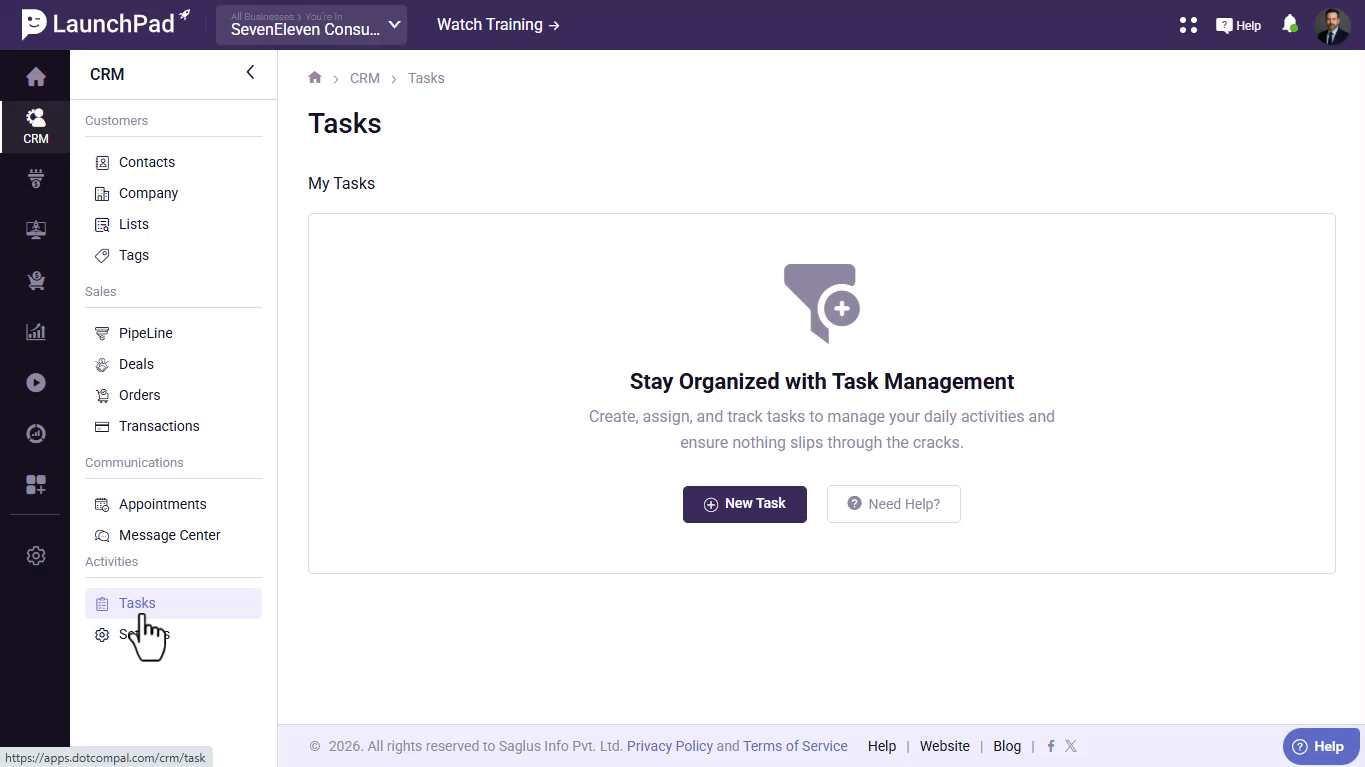
Step 3: Create a New Task
Click on the NewTask button.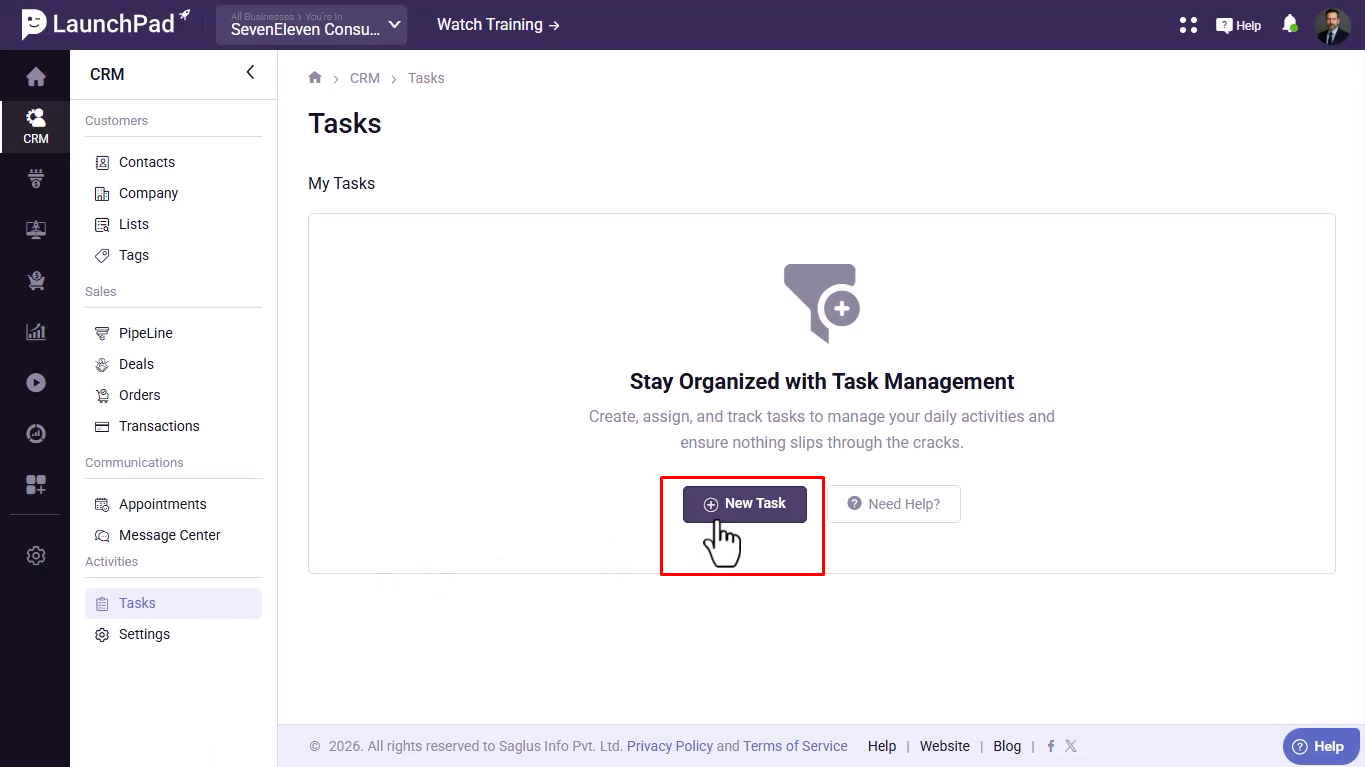
Step 4: Enter the Task Title
Provide a clear and meaningful Task Title.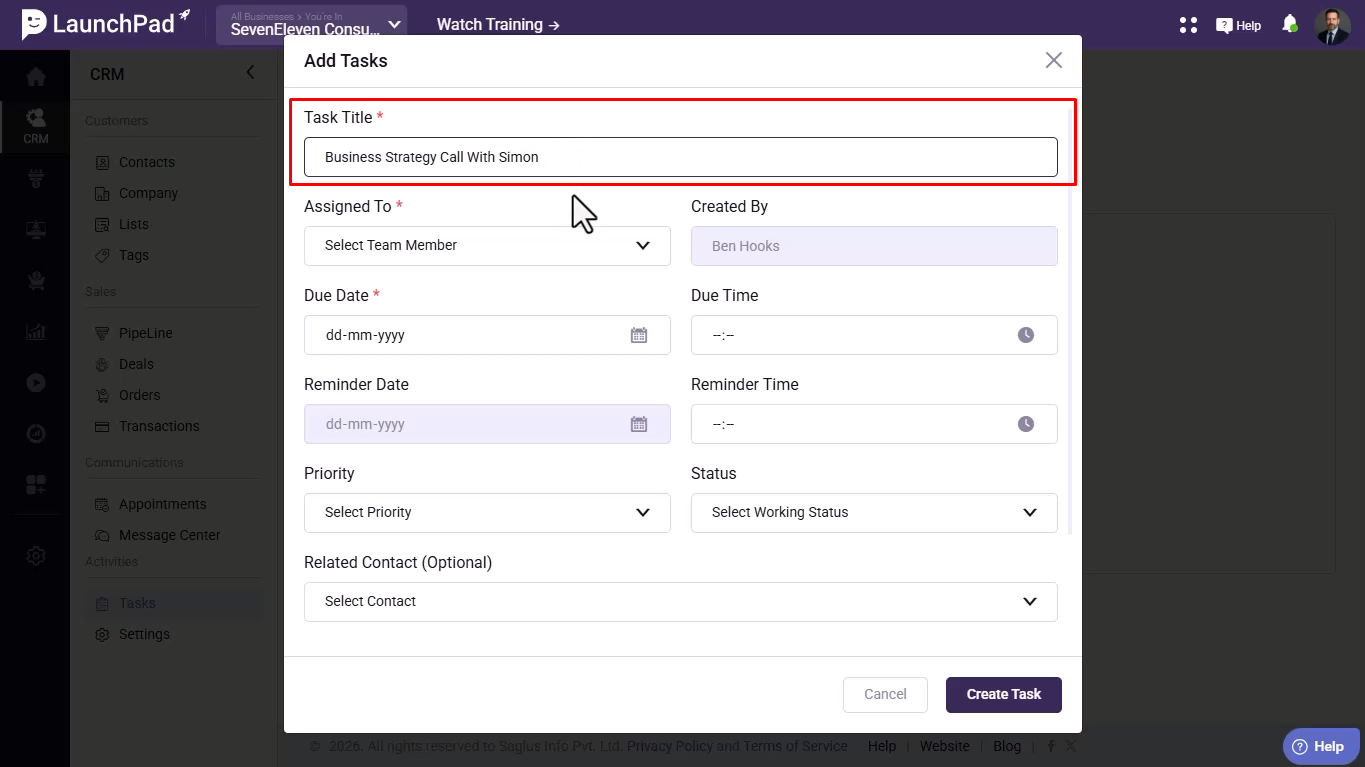
Step 5: Assign the Task
Select the team member to whom the task will be assigned.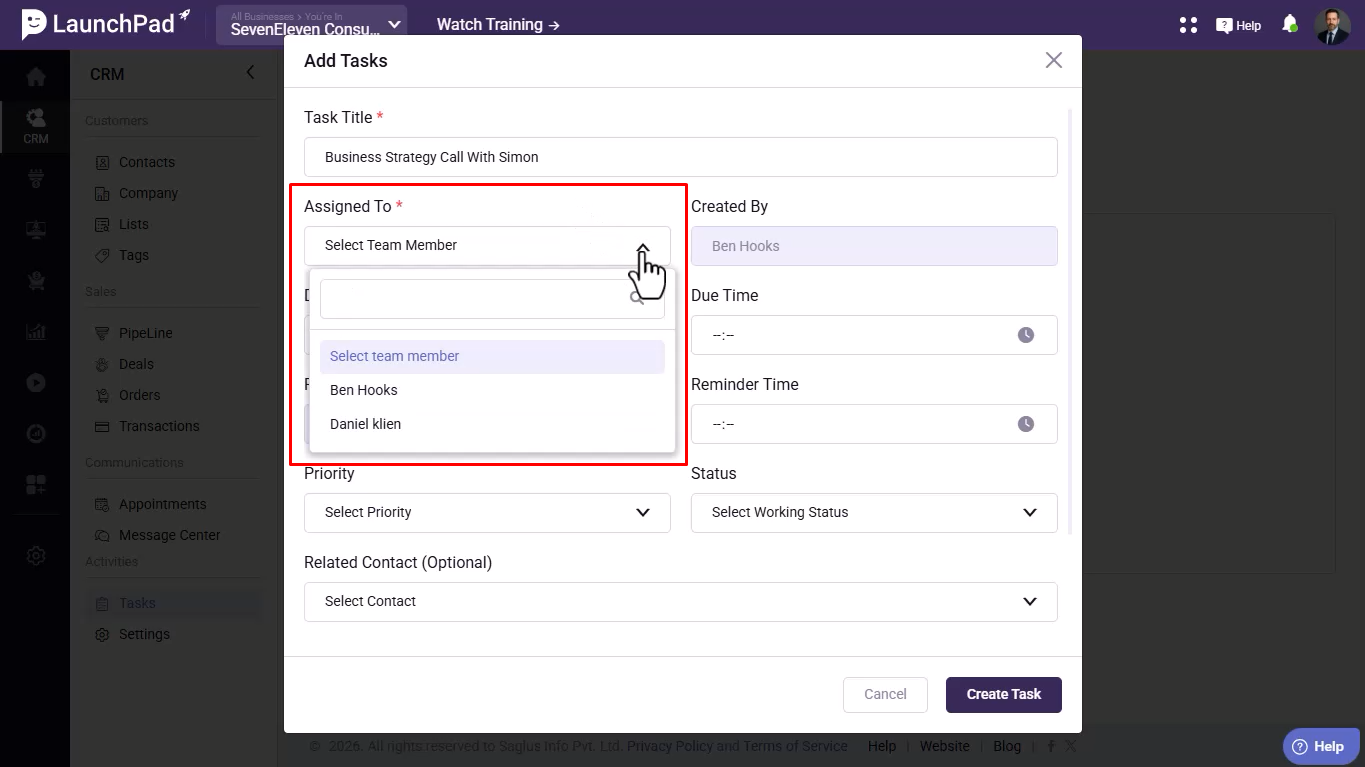
Step 6: Set the Due Date and Time
Choose the Due Date and Due Time for task completion.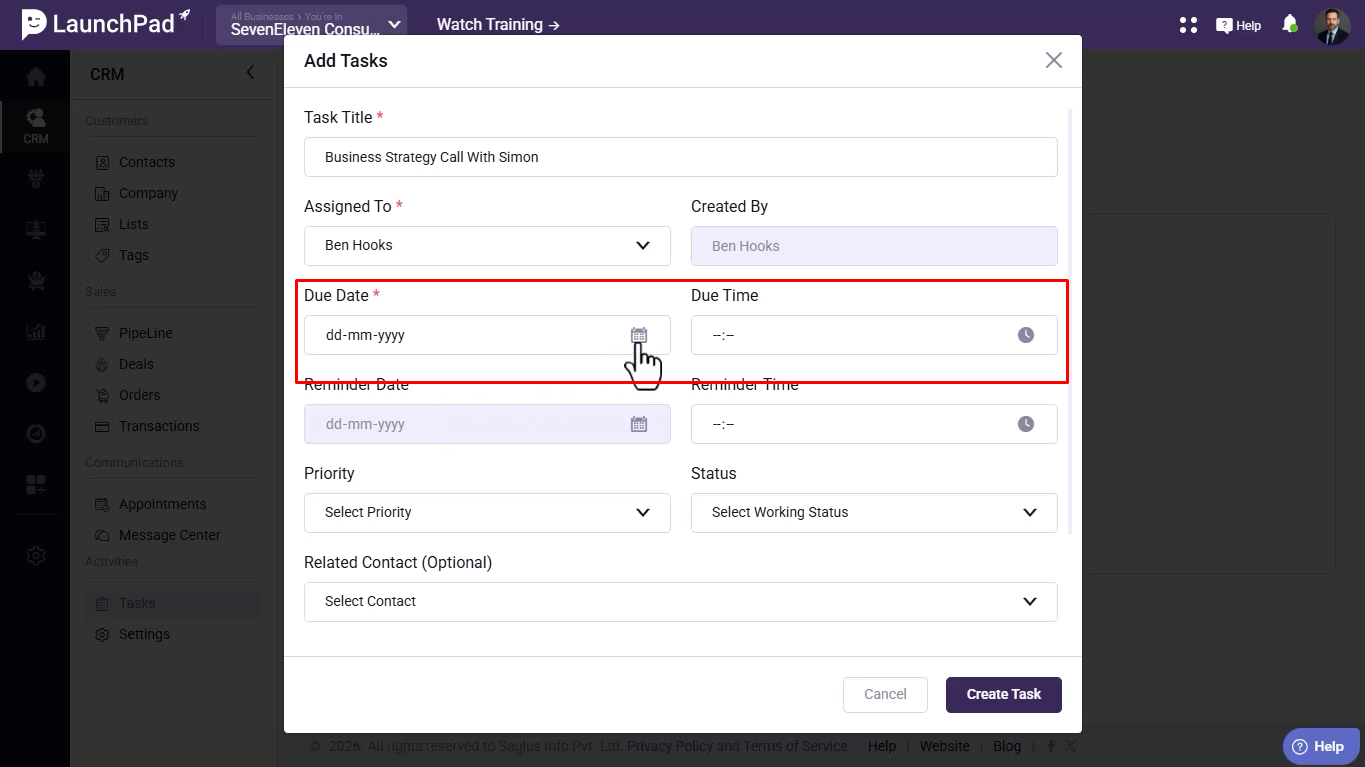
Step 7: Configure Reminders
Set the Reminder Date and Time to receive notifications before the deadline.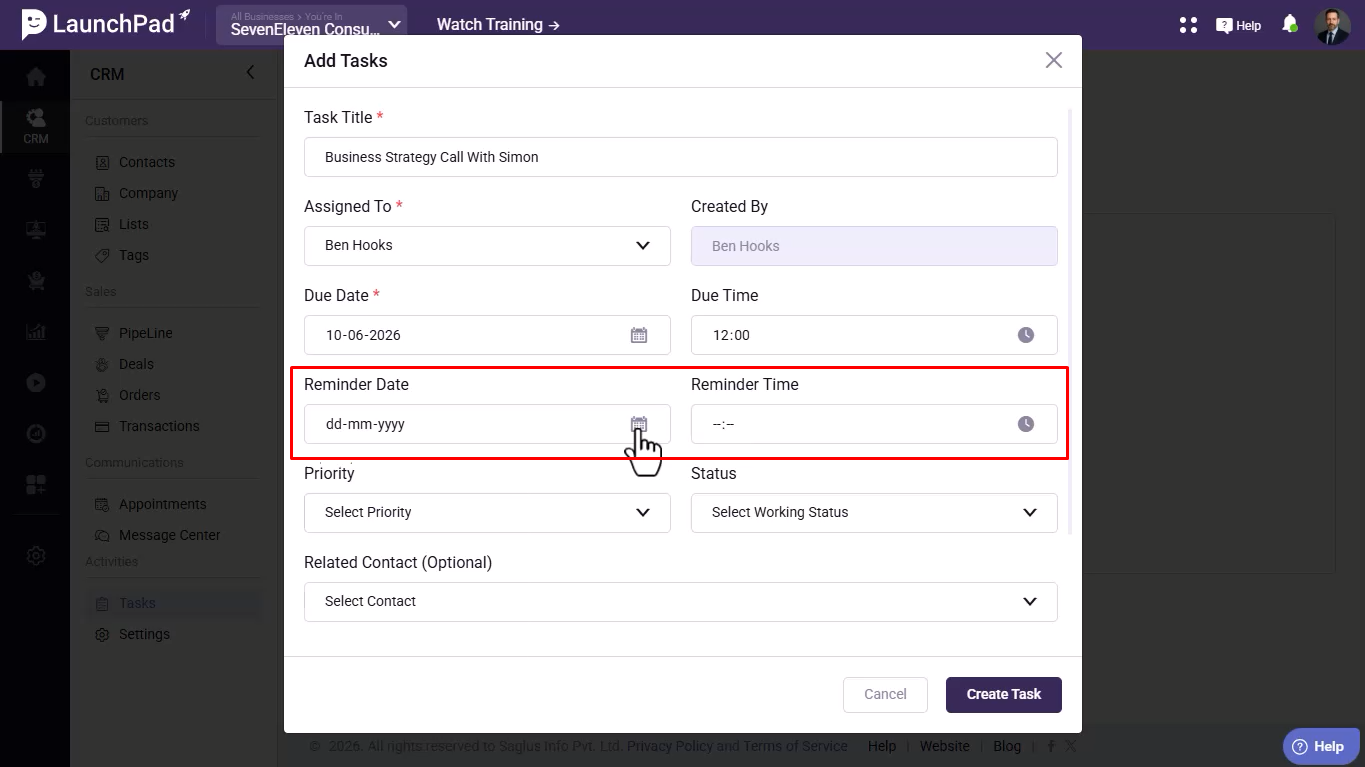
Step 8: Choose the Priority Level
Select the task priority as Low, Medium, or High.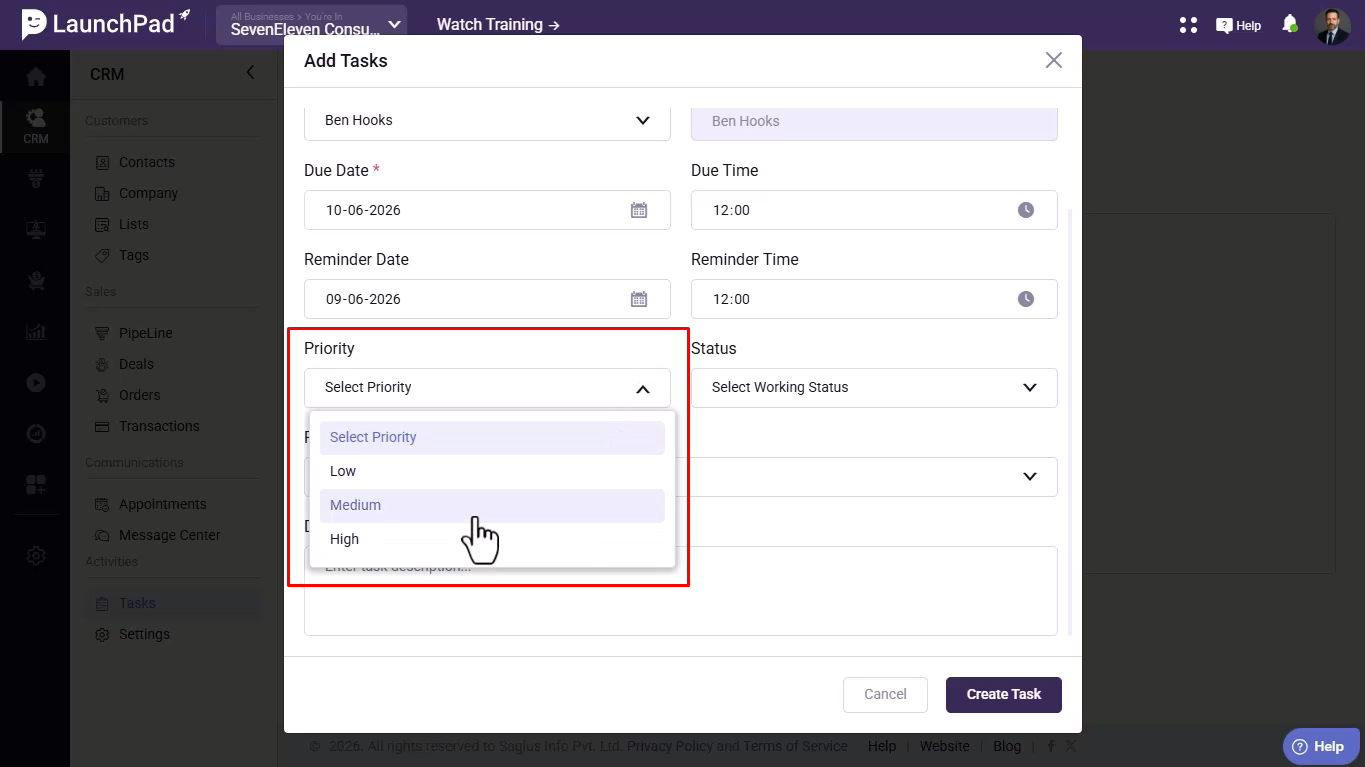
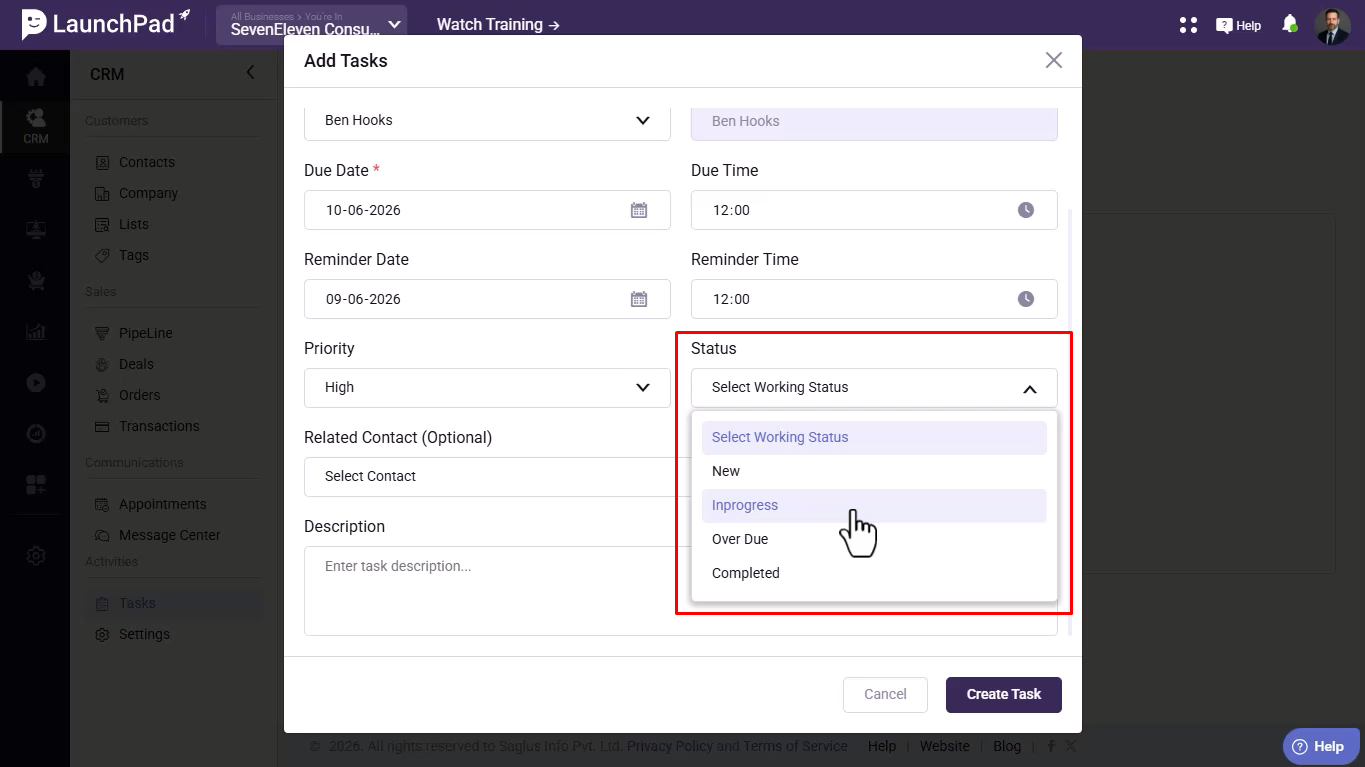
Step 9: Update the Task Status
Choose the appropriate status:
- New
- In Progress
- Overdue
- Completed
Step 10: Link a Related Contact
Search for and select a Related Contact if required.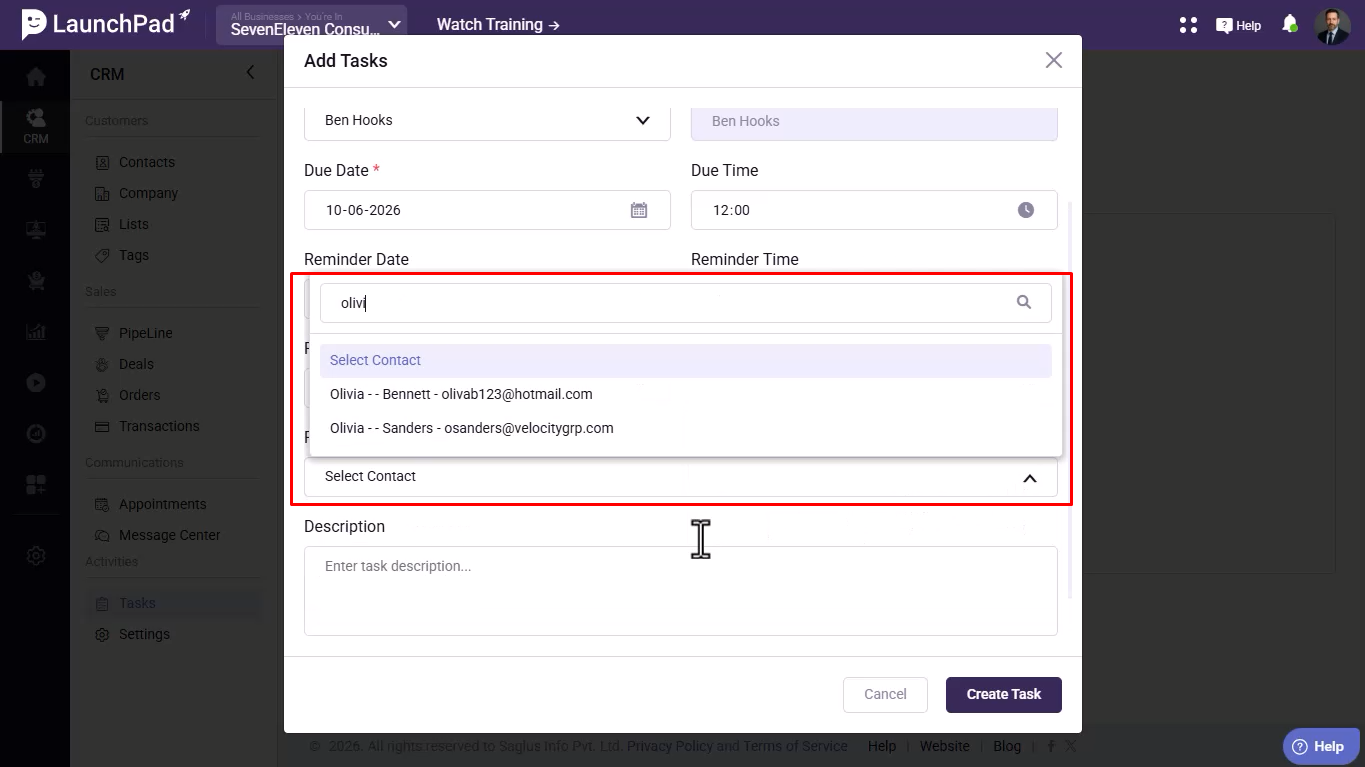
Step 11: Add a Task Description
Enter instructions, notes, or any additional details related to the task.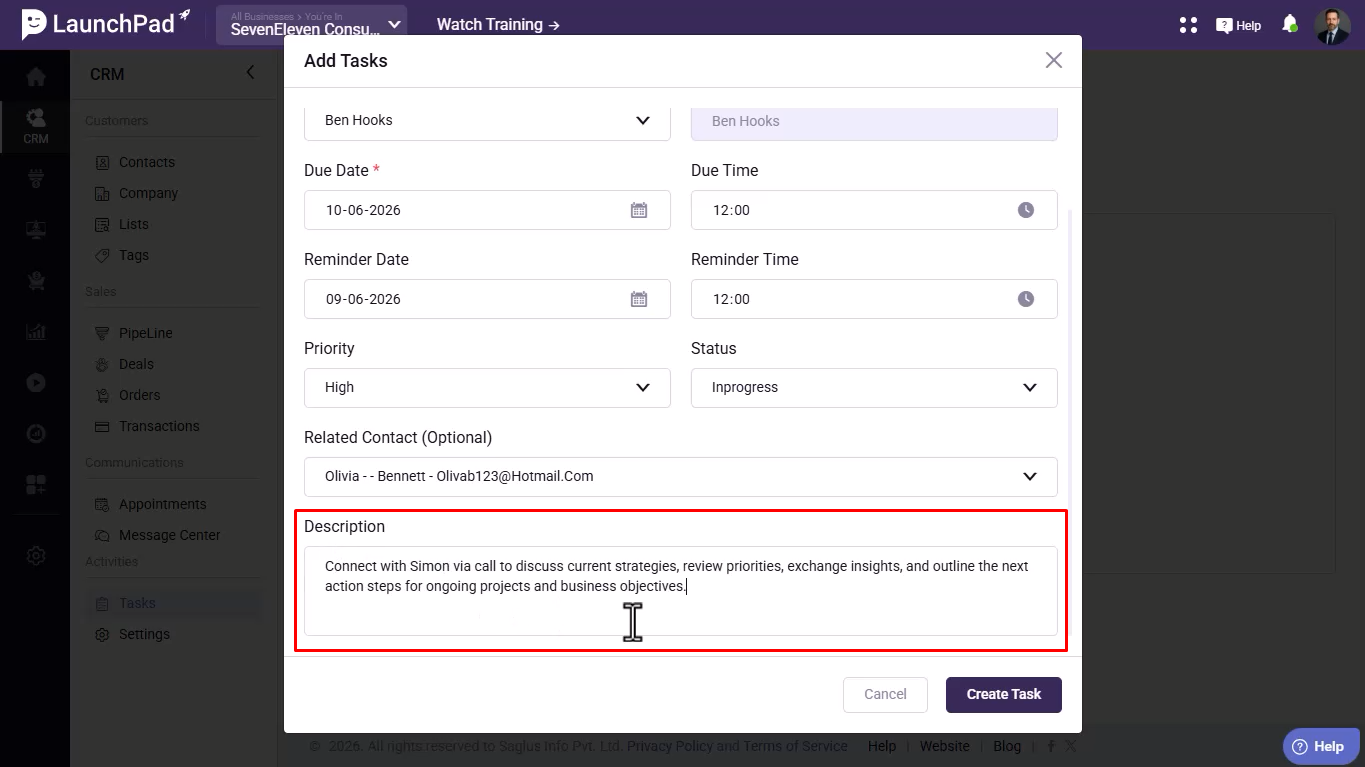
Step 12: Create and Save the Task
Click Create Task to save and start tracking the task.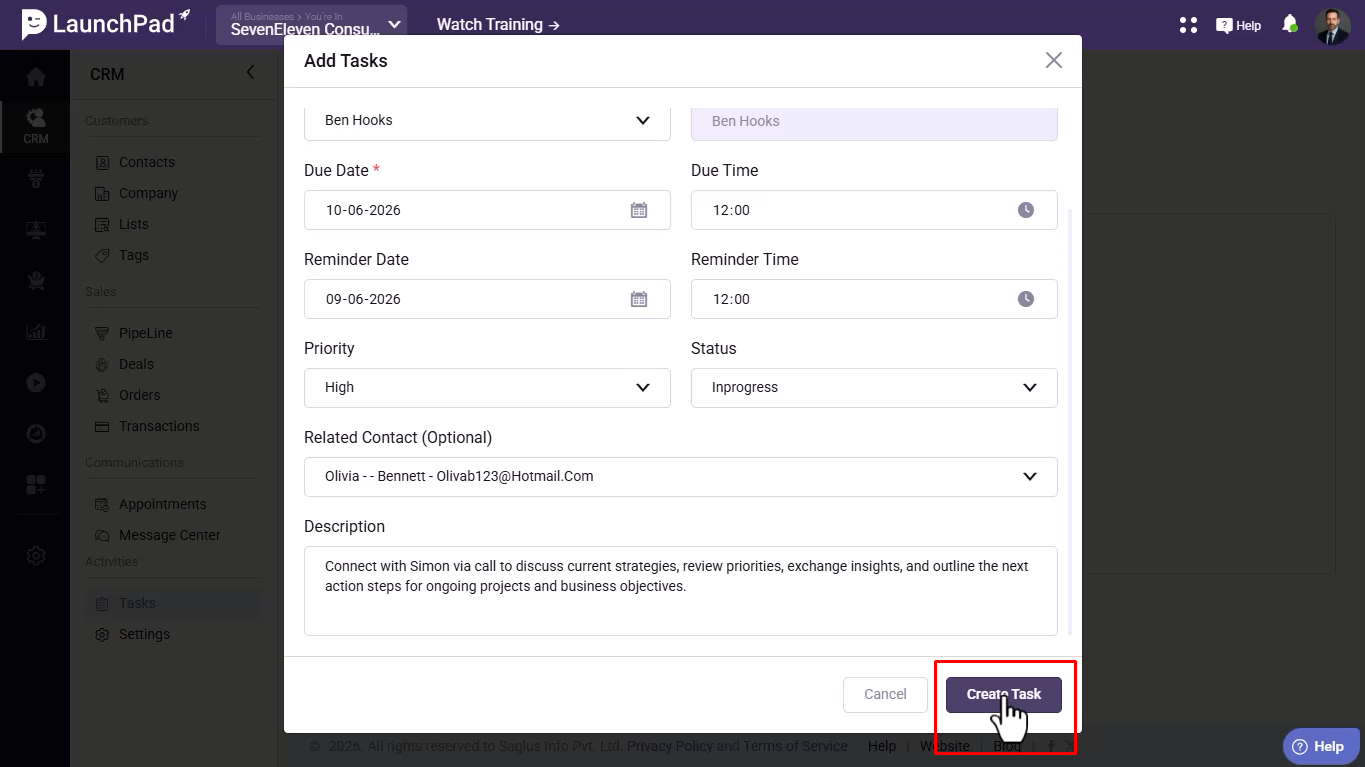
Was this article helpful?
That’s Great!
Thank you for your feedback
Sorry! We couldn't be helpful
Thank you for your feedback
Feedback sent
We appreciate your effort and will try to fix the article