How to Configure Product Settings and Purchase Redirection in DotcomPal
Step 1: Open Settings
Click the Settings icon from the left vertical menu.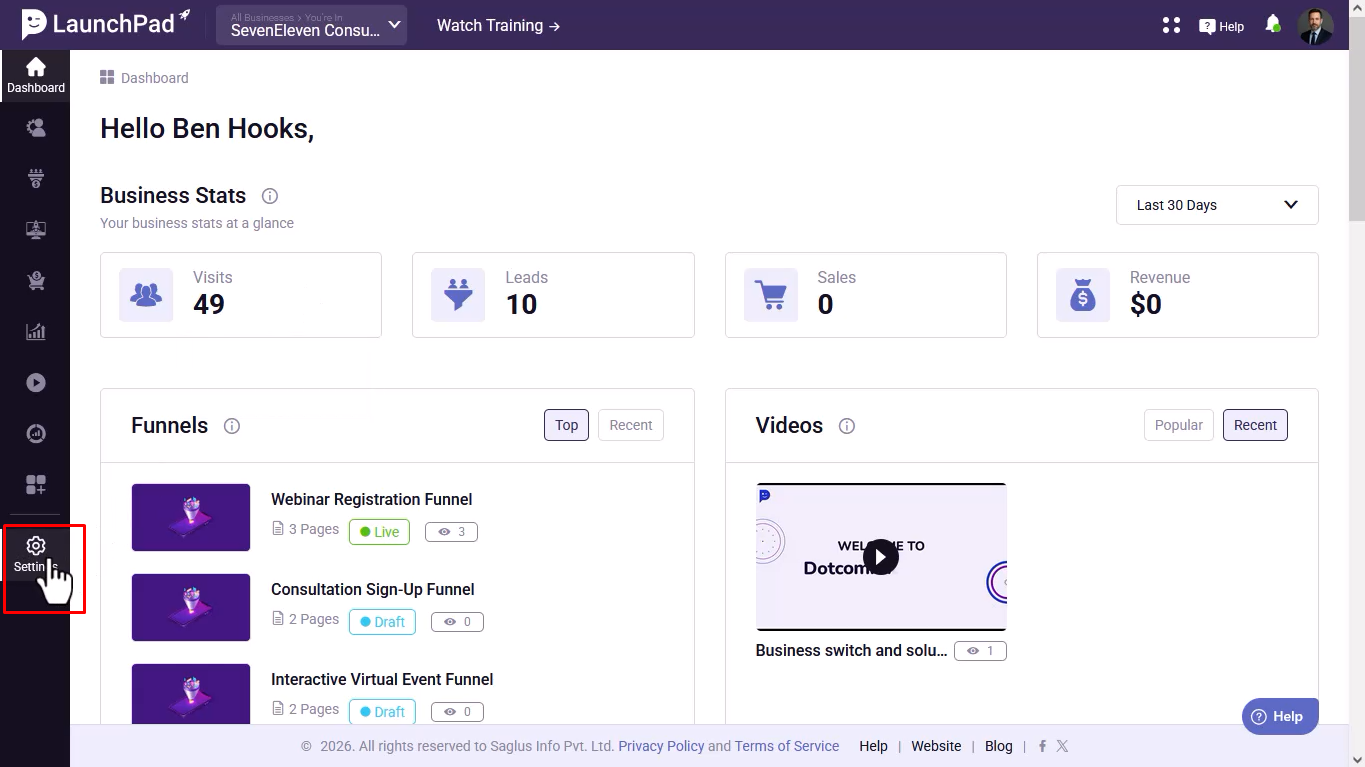
Step 2: Access Members Area Settings
Scroll down and select the Members Area option.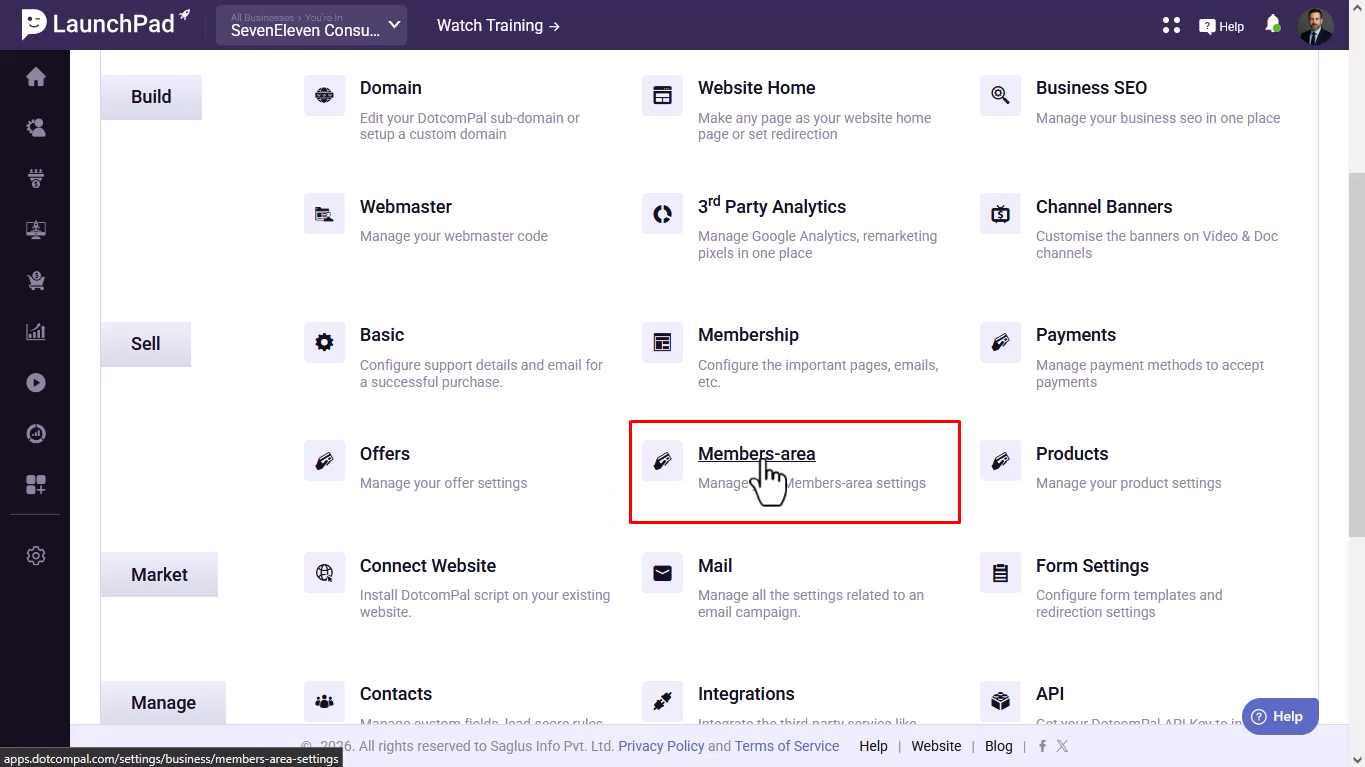
Step 3: Open Product Settings
Click on the Products tab to access product-related settings.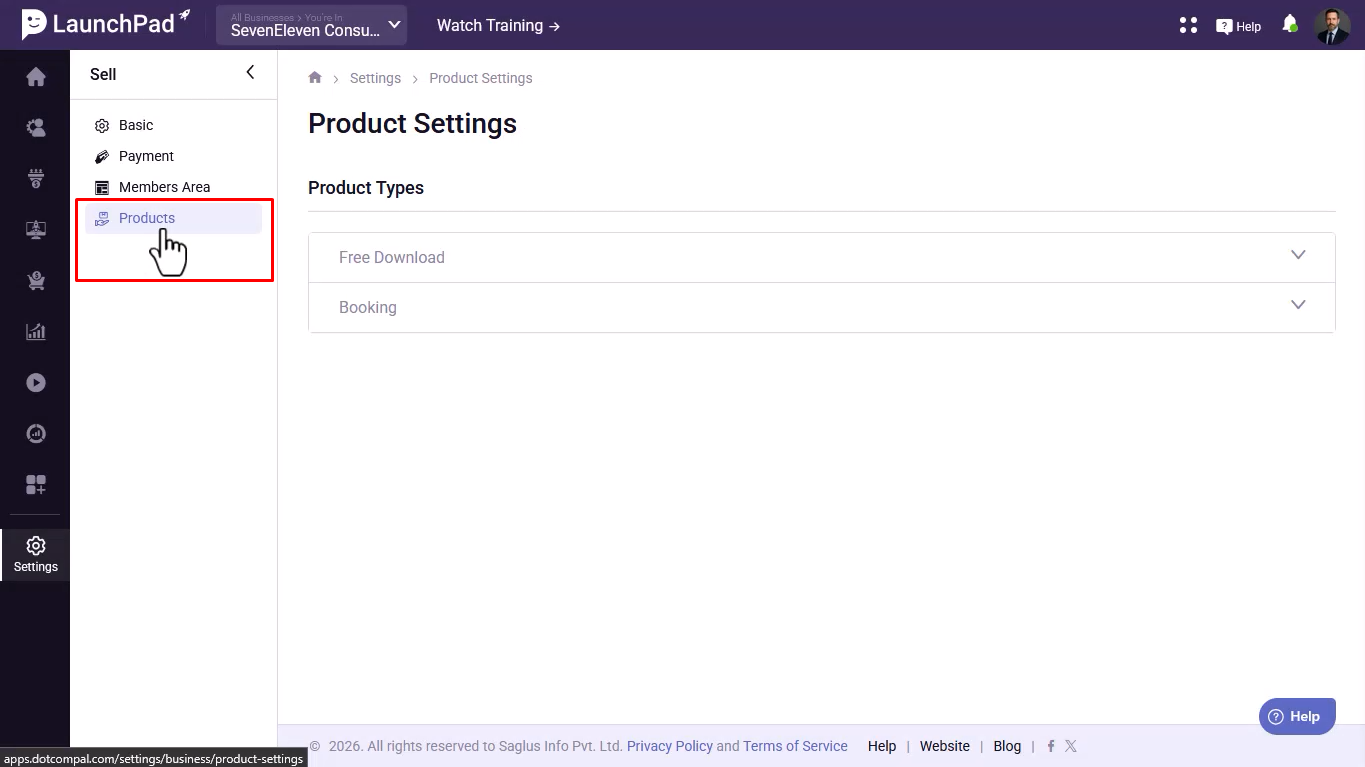
Step 4: Select a Product Type
Free Download | Booking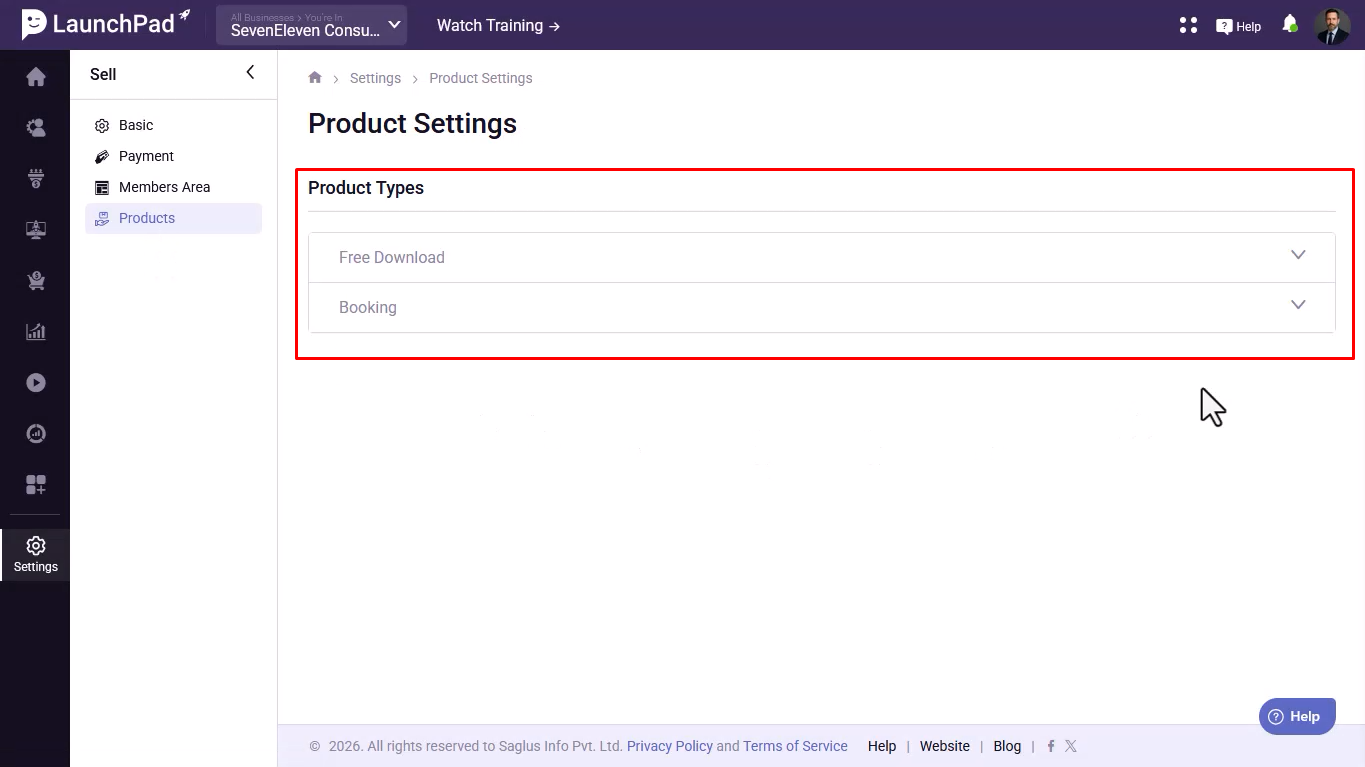
Step 5: Review the Default Signup Form
Click the dropdown under the selected product type to view the assigned signup form.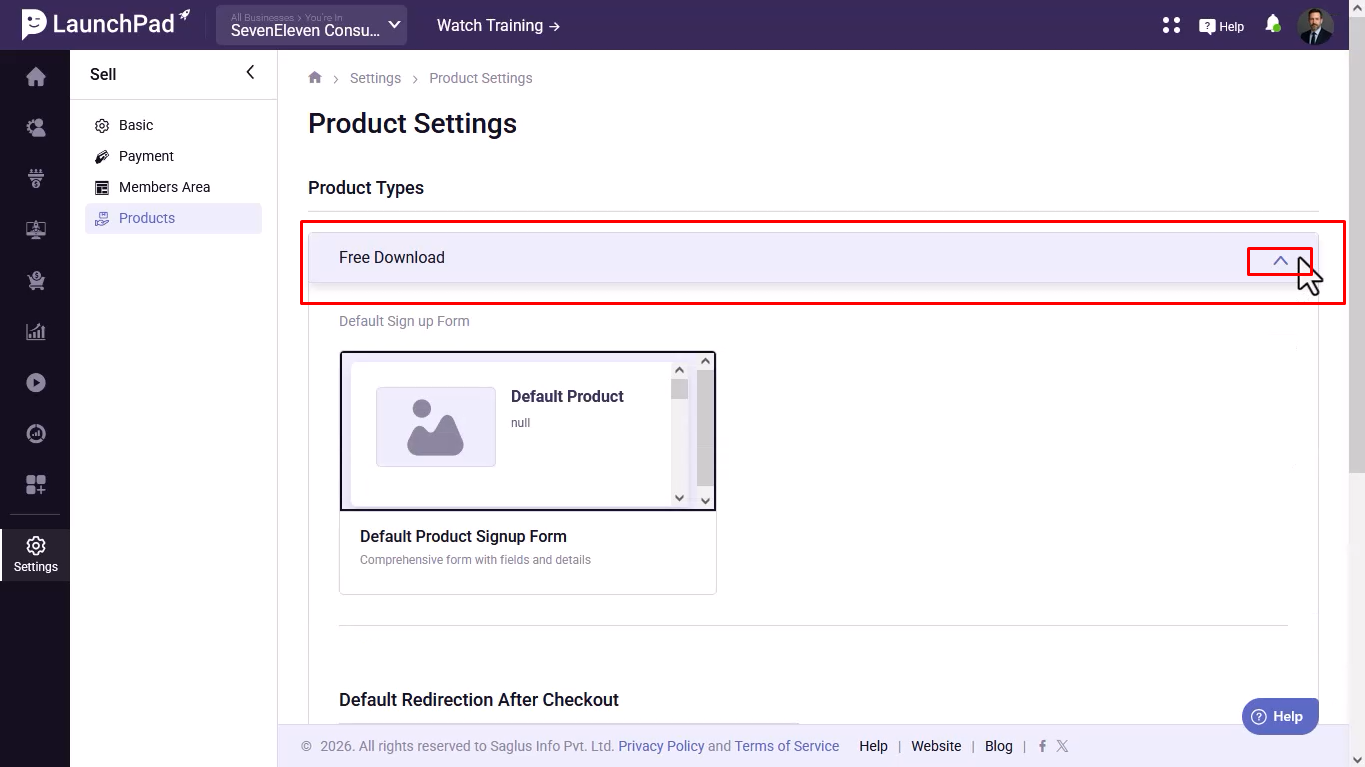
Step 6: Preview the Signup Form
Hover over the form and click Preview to see how it appears to users.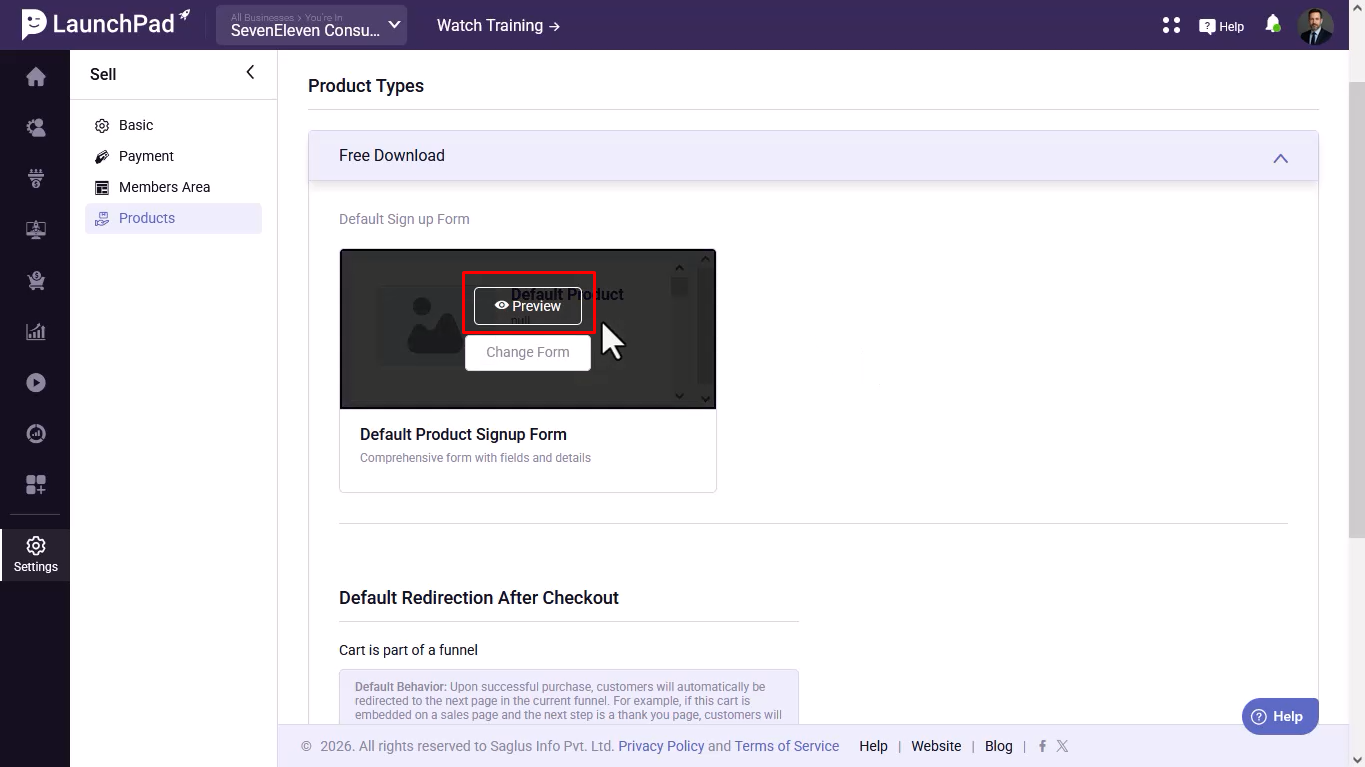
Step 7: Change the Signup Form (Optional)
Click Change Form and select a different form from your existing forms if required.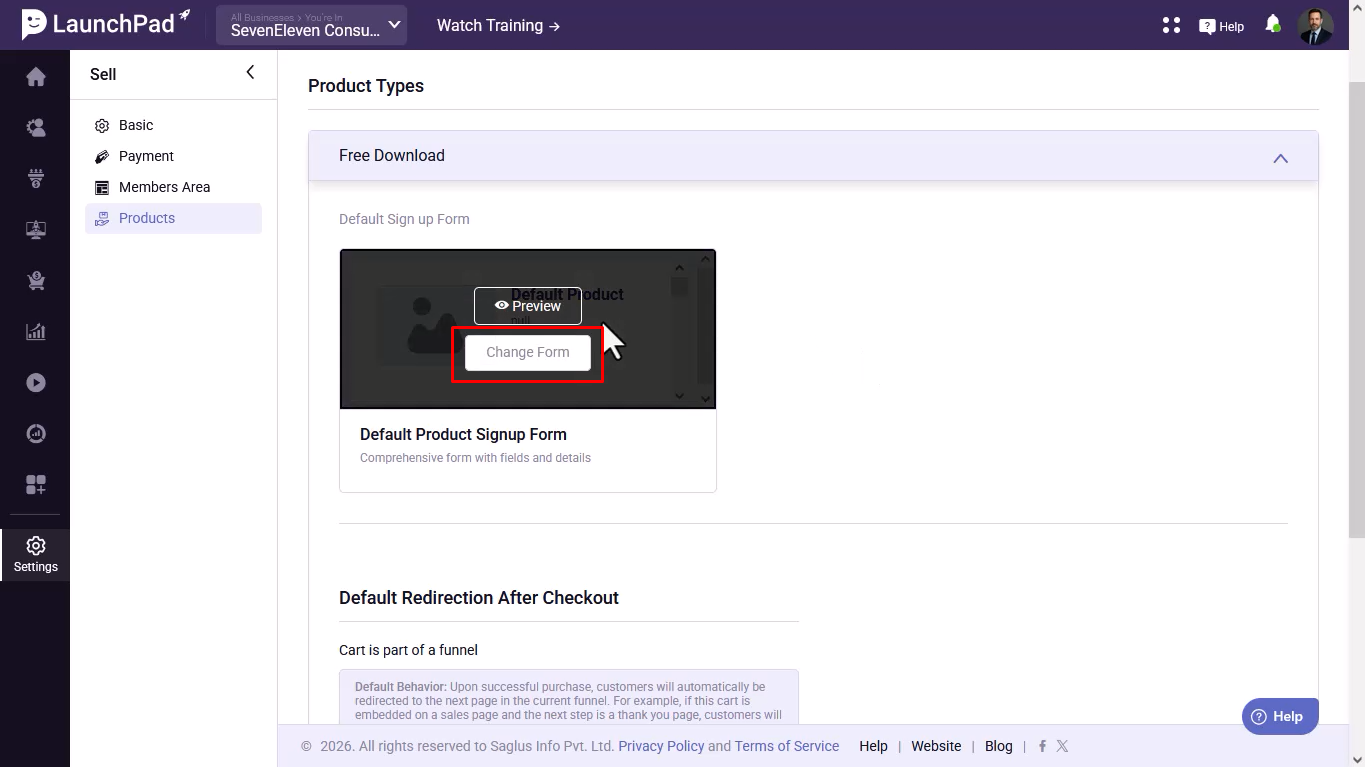
Step 8: Choose a Redirection Option
Next Funnel Step | Custom URL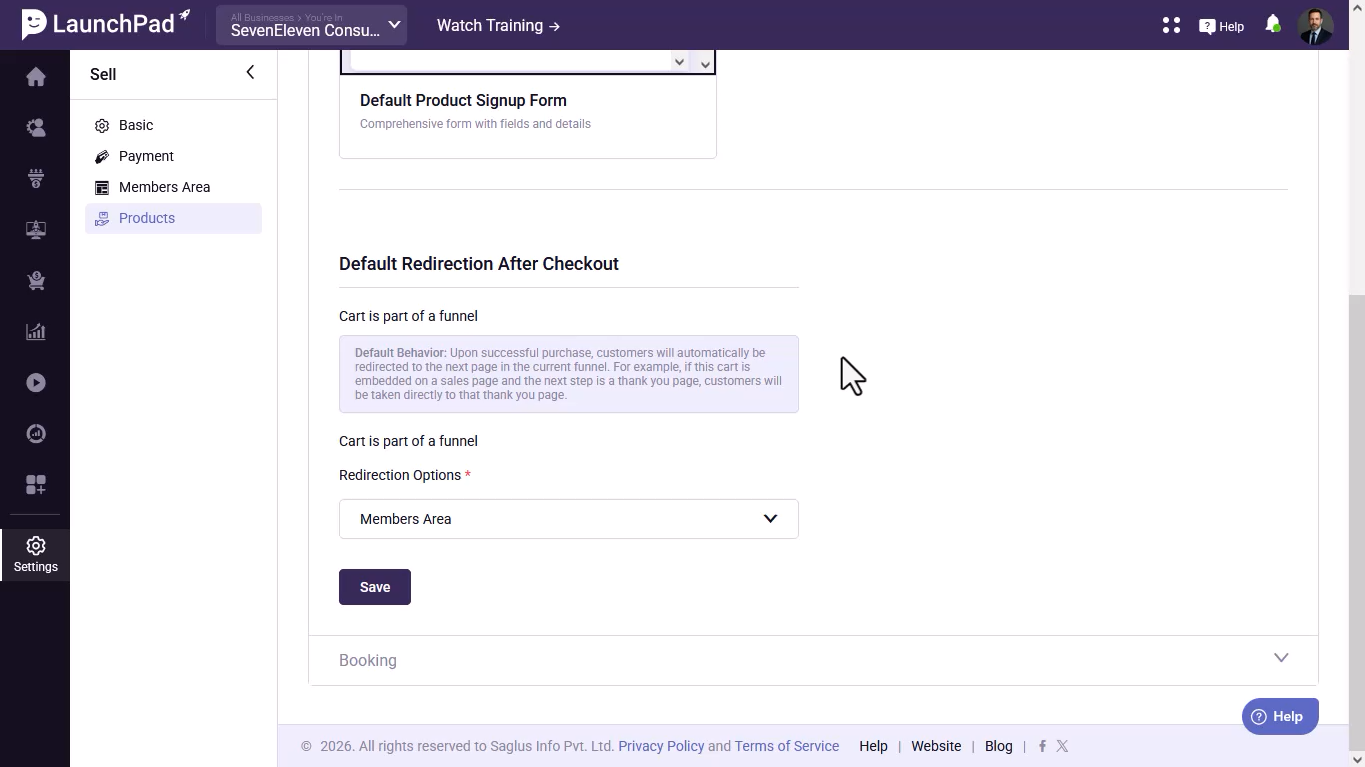
Step 10: Add a Custom Redirect URL (Optional)
If you choose Custom URL, enter the destination URL where customers should be redirected after a successful purchase.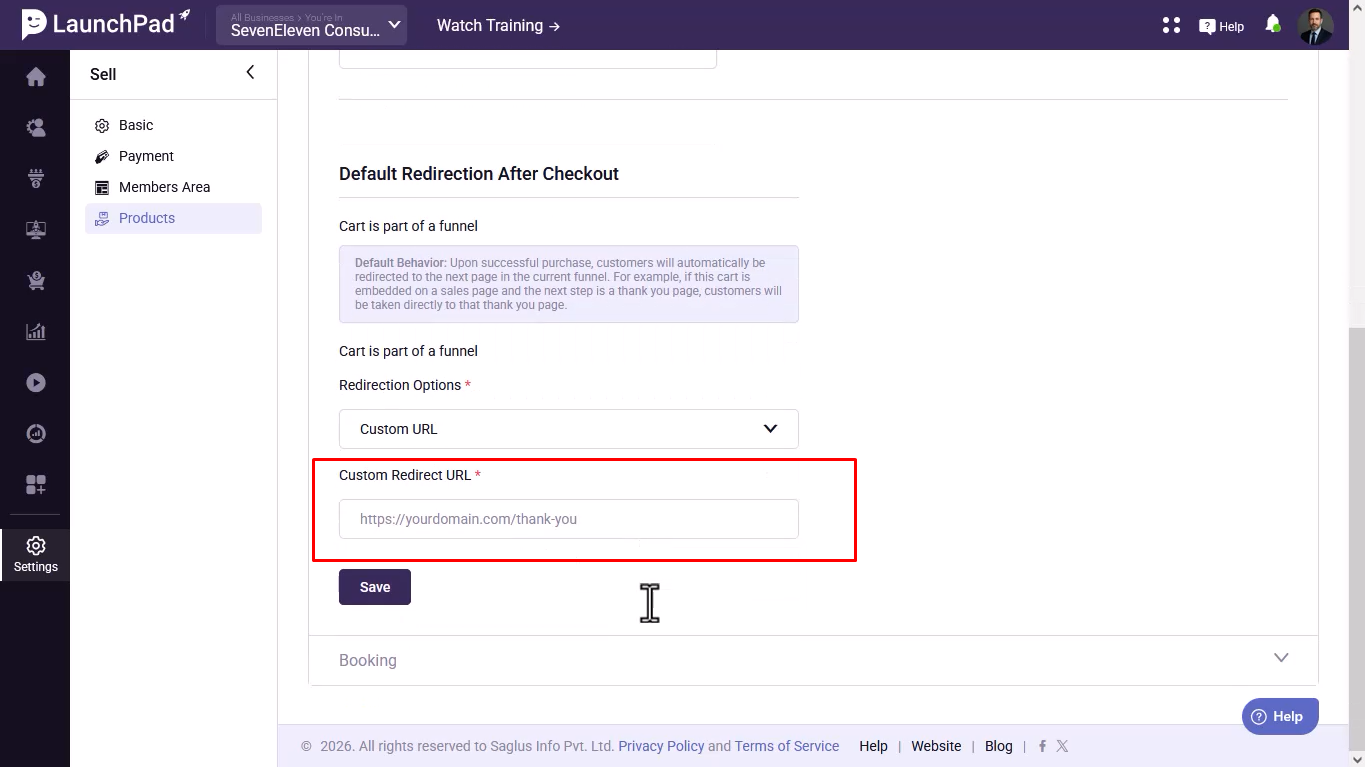
Step 11: Save Your Changes
Click the Save button to apply and store your settings.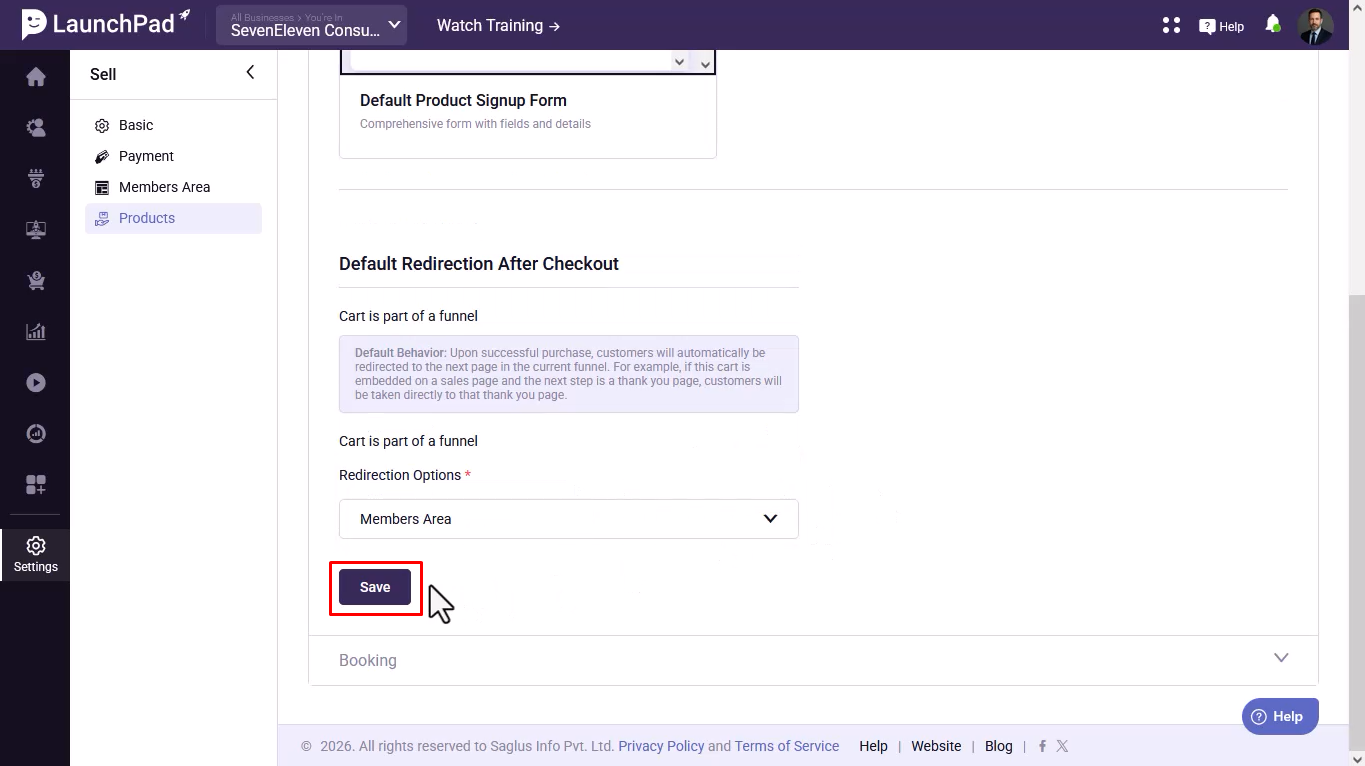
Was this article helpful?
That’s Great!
Thank you for your feedback
Sorry! We couldn't be helpful
Thank you for your feedback
Feedback sent
We appreciate your effort and will try to fix the article